Logs
The Logs area is the main place to inspect playback history and export evidence for reporting or troubleshooting. Operators should use it whenever current-state views are not enough to explain what happened.
What Logs Are For
Logs help answer questions like:
- did a specific asset actually play?
- how often did it play?
- when did it play?
- on which player and screen did it appear?
- what happened over a specific reporting window?
This makes logs important for both operational troubleshooting and external reporting.
Main Log Data
Current log records include fields such as:
- log ID
- asset ID
- screen ID
- player ID
- playback time
- duration
- metadata
In the UI, these raw records are usually presented alongside asset context to make them easier to interpret.
Core Log Filters
The API and UI support filtering logs by:
- screen
- player
- asset IDs
- start time
- end time
- sort order
- pagination controls such as limit and offset
This lets operators narrow the results to the exact playback window they need to investigate.
Reports
The Logs page can generate a report view and export it.
The current reporting flow summarizes:
- asset totals
- total duration
- total count
- the underlying playback entries used to build the report
The built-in download flow exports a CSV containing:
- per-asset totals
- a grand total row
- line-by-line playback detail
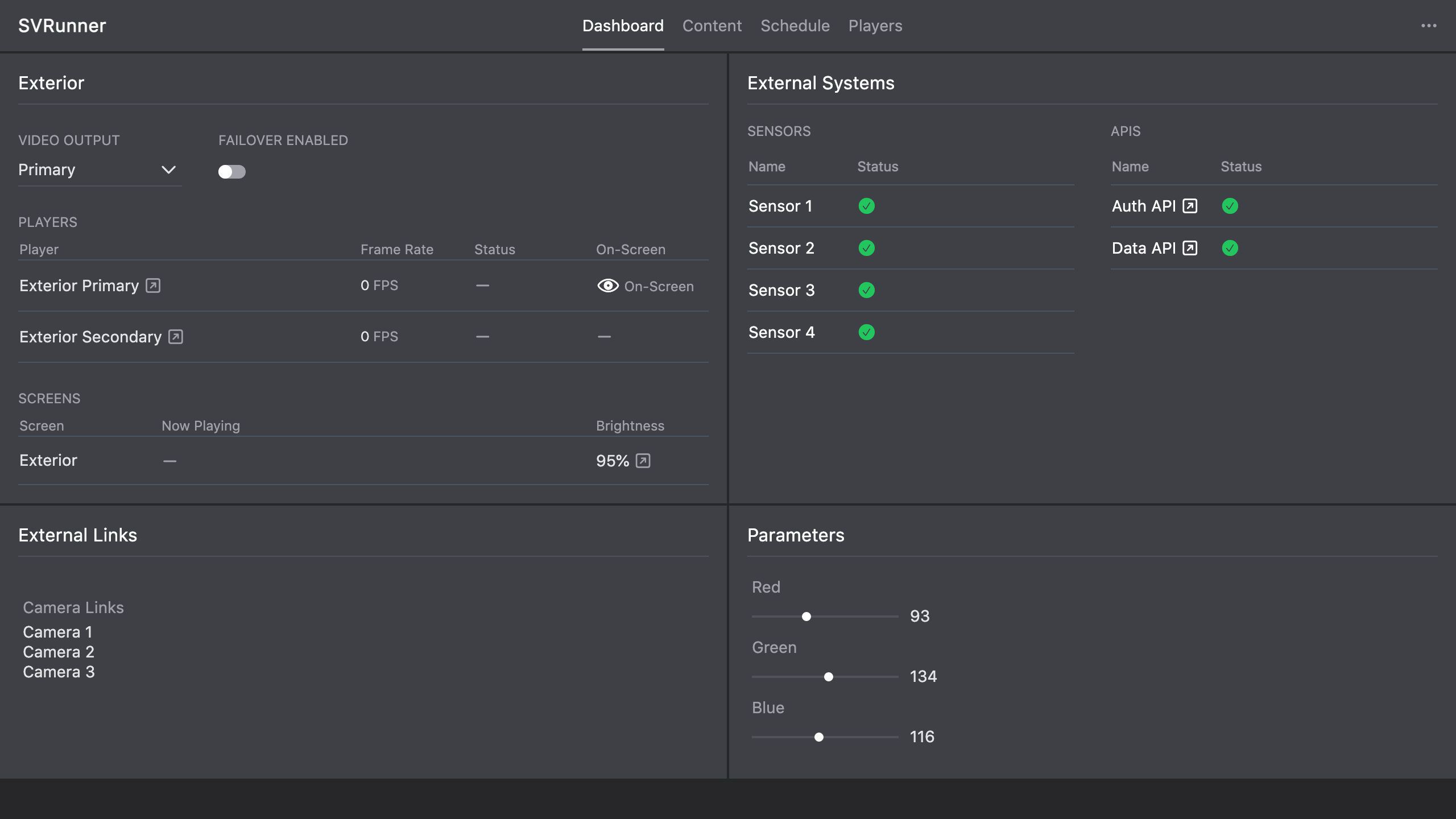 Stub screenshot: Logs page with filters, a report summary, and detailed playback rows all visible. Save final image at
 packages/docs/screenshots/app-logs-page.png.
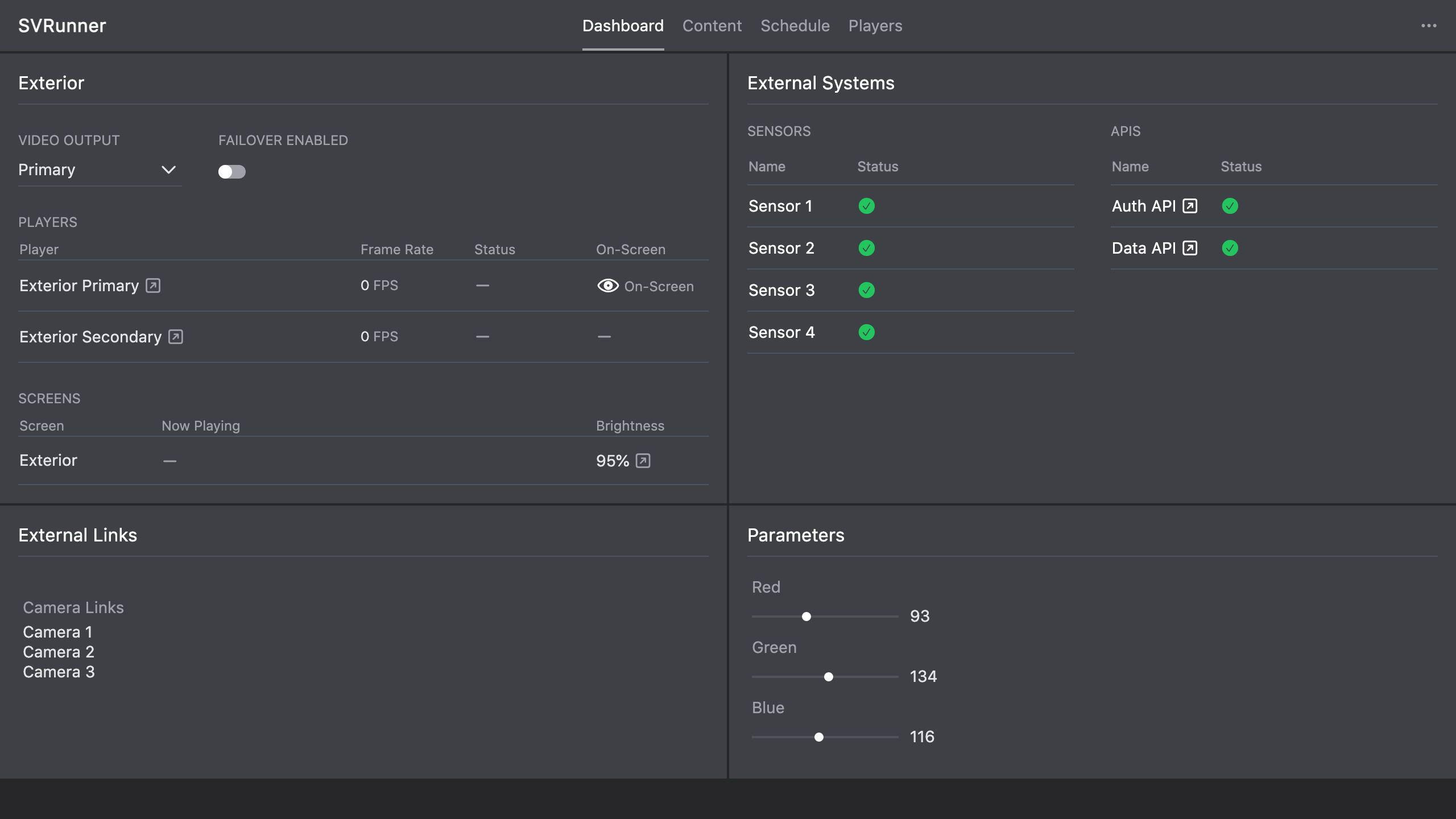 Stub screenshot: downloaded CSV or the download action showing how operators export a report for handoff. Save final image at
 packages/docs/screenshots/app-logs-csv-export.png.
Typical Operator Workflow
- Open Logs.
- Set the reporting window.
- Filter by screen, player, or asset if needed.
- Review the totals for the reporting period.
- Inspect the detailed playback list.
- Export the CSV when the data needs to be shared or archived.
When Logs Are Most Useful
Use logs when:
- an asset was expected to play but may not have
- a client or stakeholder needs playback evidence
- a screen behaved unexpectedly and you need historical confirmation
- preview and live playback appear to disagree
- a problem is intermittent and hard to catch in real time
Operational Guidance
Use Logs As Evidence, Not Guesswork
If an operator report conflicts with what someone remembers seeing, logs are the better starting point.
Pair Logs With Preview And Dashboard
Logs explain what happened. Preview explains what should generate. The dashboard explains current runtime health.
Use all three together for faster diagnosis.
Export Before Escalating
If an issue needs to be escalated, export the relevant report window first. That gives admins or developers concrete data to work with.