Preferences
Preferences define project-level defaults and behavior across SVRunner. These settings are generally administered by admins, but operators should understand the ones that affect daily scheduling and asset workflows.
Who Can Edit Preferences
Preferences are intended for users with administrative access.
Because preferences affect system-wide defaults, they should be treated as configuration, not casual content editing.
What Preferences Control
Current preferences include defaults for:
- new event occurrence type
- default extension selection for assets and asset blocks
- whether file-based assets are allowed
- whether video preview generation is skipped
- default image asset duration
- default project latitude and longitude
- calendar split-hour behavior
- default admin permissions for new assets
- default screen selection for new events
High-Impact Preferences
events.defaultOccurenceType
Controls the default occurrence type for new events.
This changes the starting behavior operators see when creating events, so it can materially affect scheduling mistakes or speed.
assets.allowFile
Controls whether file-based asset uploads are allowed.
This is a major operational setting. If disabled, upload workflows change significantly.
assets.skipFilePreview
Controls whether video preview generation is skipped.
This can improve throughput or reduce processing work, but it also changes what operators can validate visually after upload.
assets.defaultDuration
Controls the default duration for image-based assets.
This matters because image timing affects schedule behavior immediately if operators do not override it asset by asset.
project.defaultLatitude and project.defaultLongitude
These defaults affect sunphase timing behavior.
If your deployment uses astronomical triggers such as brightness schedules, these values are operationally important.
events.defaultSplitHour
Controls the hour used for split behavior in the calendar view.
This influences how scheduling is presented to operators and should match the operational day boundary expected by the team.
events.defaultScreenId
Controls which screen is selected by default when creating a new event and no screen is currently selected.
This is a small setting with potentially large consequences in multi-screen deployments.
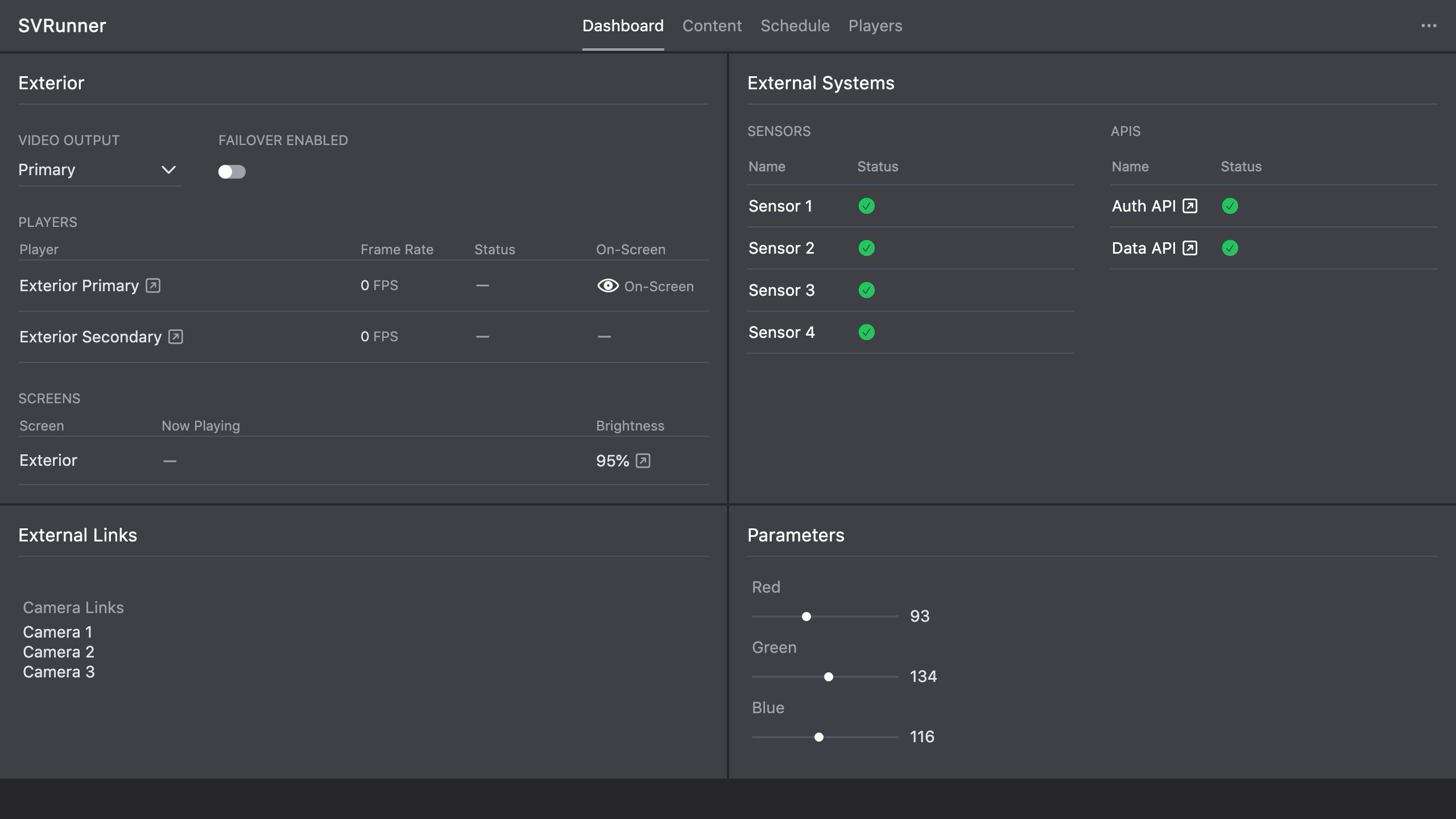 Stub screenshot: preferences page with a representative set of project defaults visible, especially asset and event-related settings. Save final image at
 packages/docs/screenshots/app-preferences-page.png.
Operational Guidance
Change Preferences Deliberately
Preferences affect future workflows and defaults. A small configuration change can alter how every new asset or event behaves.
Before changing a preference:
- identify who is affected
- confirm whether the setting changes existing behavior or only new defaults
- communicate the change to operators if it affects daily workflows
Review Asset Defaults Carefully
Asset-related defaults are especially important in production because they affect upload speed, validation, and permission handling.
Document Local Conventions
If the team relies on specific values for default occurrence types, screen defaults, or astronomical coordinates, document those local rules so new admins do not unknowingly undo them.