Actions
Actions are scheduled or operator-visible automation objects. They can control display behavior, trigger external behavior, and surface operational tools on the dashboard or calendar.
What An Action Contains
An action commonly includes:
- a type
- a name
- one or more targets
- one or more screens
- a description
- schedule information
- optional visibility on the dashboard or calendar
- action-specific data based on the selected type
Supported Action Types
The current UI exposes at least these action types:
- Brightness Schedule
- Network
- Boolean
- Gradient
- Emergency Shutoff
- Document
- Schema
- iFrame
Each type has its own configuration and operational meaning.
General Fields
Type
The action type determines which data fields become available and what the action does.
Choose the type first when creating a new action.
Name
Use a clear operational name so the action is understandable when it appears in the dashboard, calendar, or action list.
Targets And Screens
Actions can be associated with targets, screens, or both depending on the use case.
Be precise here. Incorrect targeting can cause the action to affect the wrong display path.
Description
Use the description field to capture operator-facing context, especially for actions that are rarely used or safety-sensitive.
Display On Dashboard / Calendar
Actions can be surfaced directly in the dashboard or calendar.
Use these toggles when operators need visibility or quick access without opening the full action record.
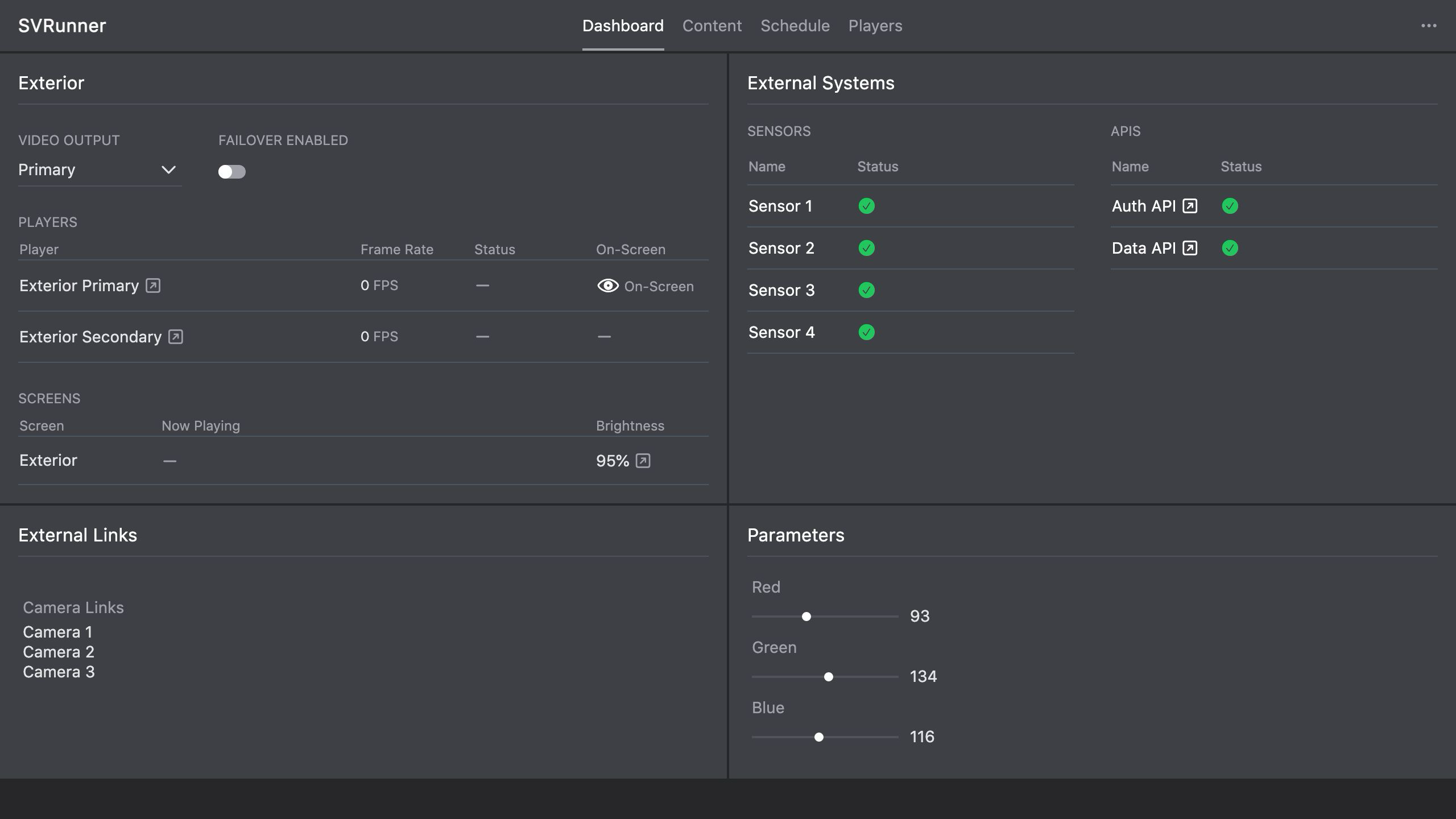 Stub screenshot: action sidebar showing the general fields, action type selector, and the dashboard/calendar visibility toggles. Save final image at
 packages/docs/screenshots/app-action-sidebar.png.
Scheduling
Actions include their own schedule behavior.
This makes them similar to events in one important way: they are not just static records, they are timed operational objects.
Use schedule settings carefully for actions that can affect live displays or automation systems.
Brightness Schedule Actions
Brightness actions are especially important operationally.
They can define:
- default brightness behavior
- point-based schedule changes
- astronomical triggers
- transition behavior
These actions often affect the visible state of the display directly and are worth validating carefully after any change.
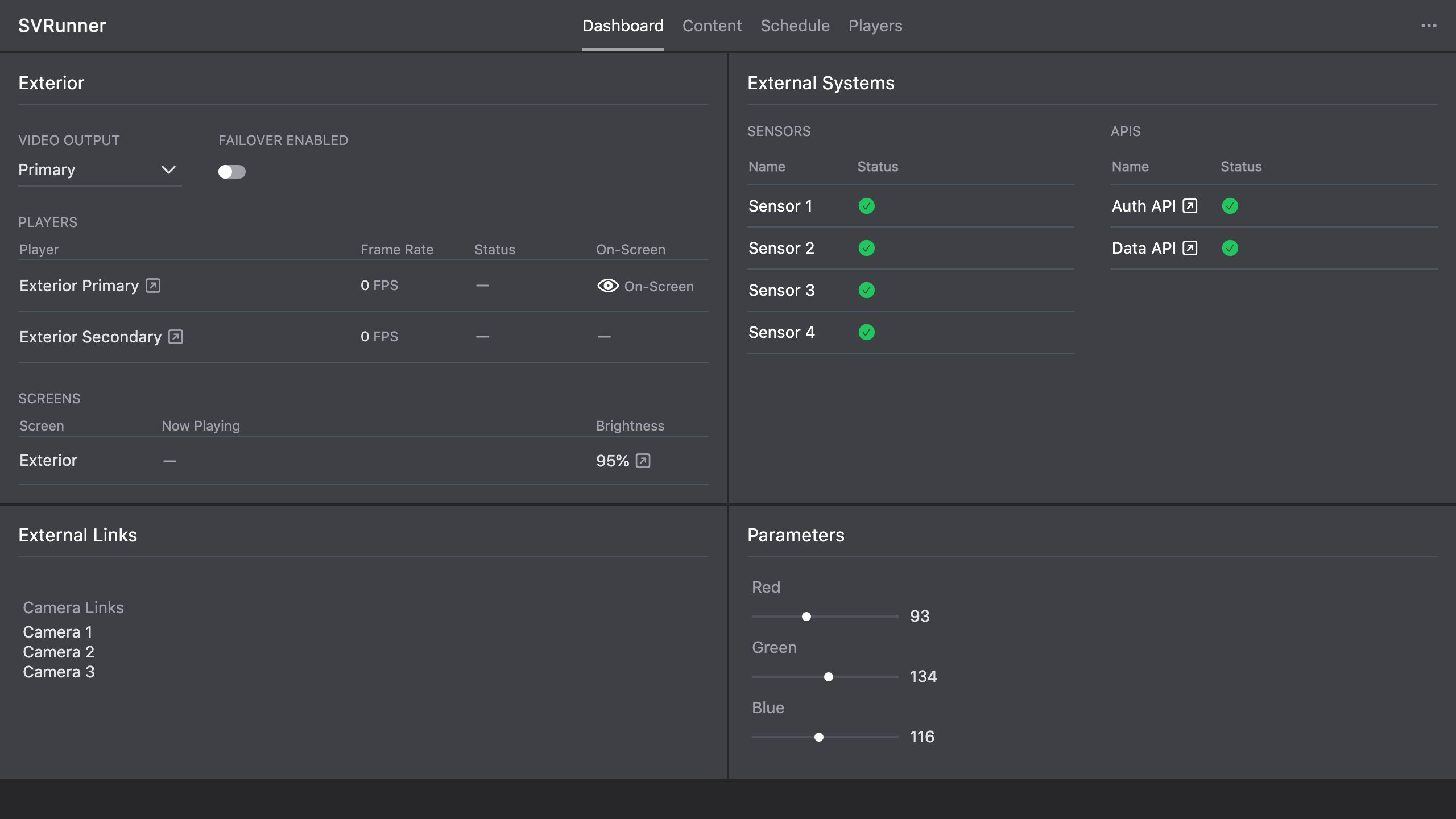 Stub screenshot: brightness schedule action or another high-value action type with its action-specific data visible. Save final image at
 packages/docs/screenshots/app-brightness-schedule-action.png.
Safety And Operational Guidance
Treat Actions As Live Controls
Some actions are harmless informational helpers. Others directly affect live output or connected systems.
Before editing or enabling an action, make sure you understand:
- what it targets
- when it runs
- whether it is visible to operators on the dashboard or calendar
- what failure or misconfiguration would look like in production
Use Descriptions For Rare Or Risky Actions
Emergency or infrastructure-related actions should not rely on memory alone.
Use the description field to explain:
- when to use the action
- who should use it
- what the expected outcome is
- what to verify afterward
Validate Schedule-Based Automation
If an action is timed, confirm that its schedule aligns with the intended display or system behavior.
This is especially important for:
- brightness schedules
- emergency actions
- actions visible in the calendar
Typical Operator Or Admin Workflow
- Create or open the action.
- Select the correct type.
- Set a clear name and description.
- Assign the correct targets and screens.
- Configure the action-specific data.
- Decide whether it should appear on the dashboard or calendar.
- Review the schedule.
- Save and validate behavior in the relevant operational context.