Calendar
The calendar is the main scheduling view in SVRunner. It shows when events are active for a selected screen and gives operators a fast way to inspect, create, and edit scheduled content.
What The Calendar Shows
For each screen, SVRunner generates a single playlist from the currently active set of events.
The calendar helps operators answer these questions:
- what is scheduled right now?
- what will be active later today or this week?
- are overlapping events expected?
- which event should be edited to change the playlist?
Screen Filtering
The calendar is typically viewed one screen at a time.
- use the screen selector to change which screen is being inspected
- changing the selected screen changes the events shown in the calendar
- always confirm the selected screen before making schedule edits
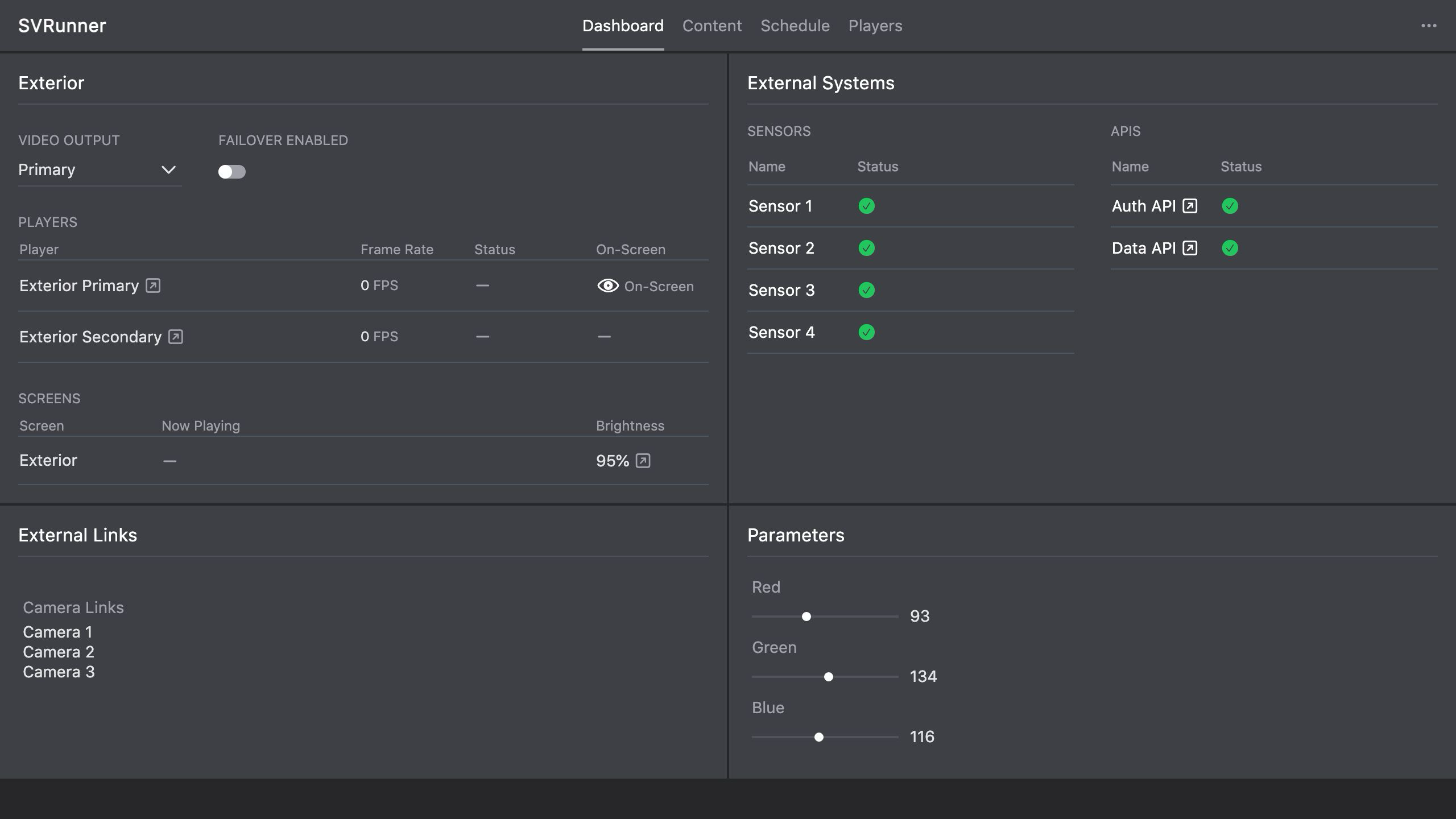 Stub screenshot: screen selector used to switch the calendar between screens. Save final image at
 packages/docs/screenshots/app-calendar-screen-selector.png.
Typical Operator Workflow
- Open the calendar.
- Select the screen you want to inspect.
- Review the visible event blocks for the relevant time range.
- Click an event to inspect or edit it.
- Create a new event when new programming is needed.
- Use preview to verify the generated playlist when timing matters.
Creating And Editing From The Calendar
The calendar is not just a report; it is also the main entry point for schedule editing.
- click an existing event to review or modify it
- use the create event action to add new scheduled content
- use label colors and names to make the schedule easier to scan visually
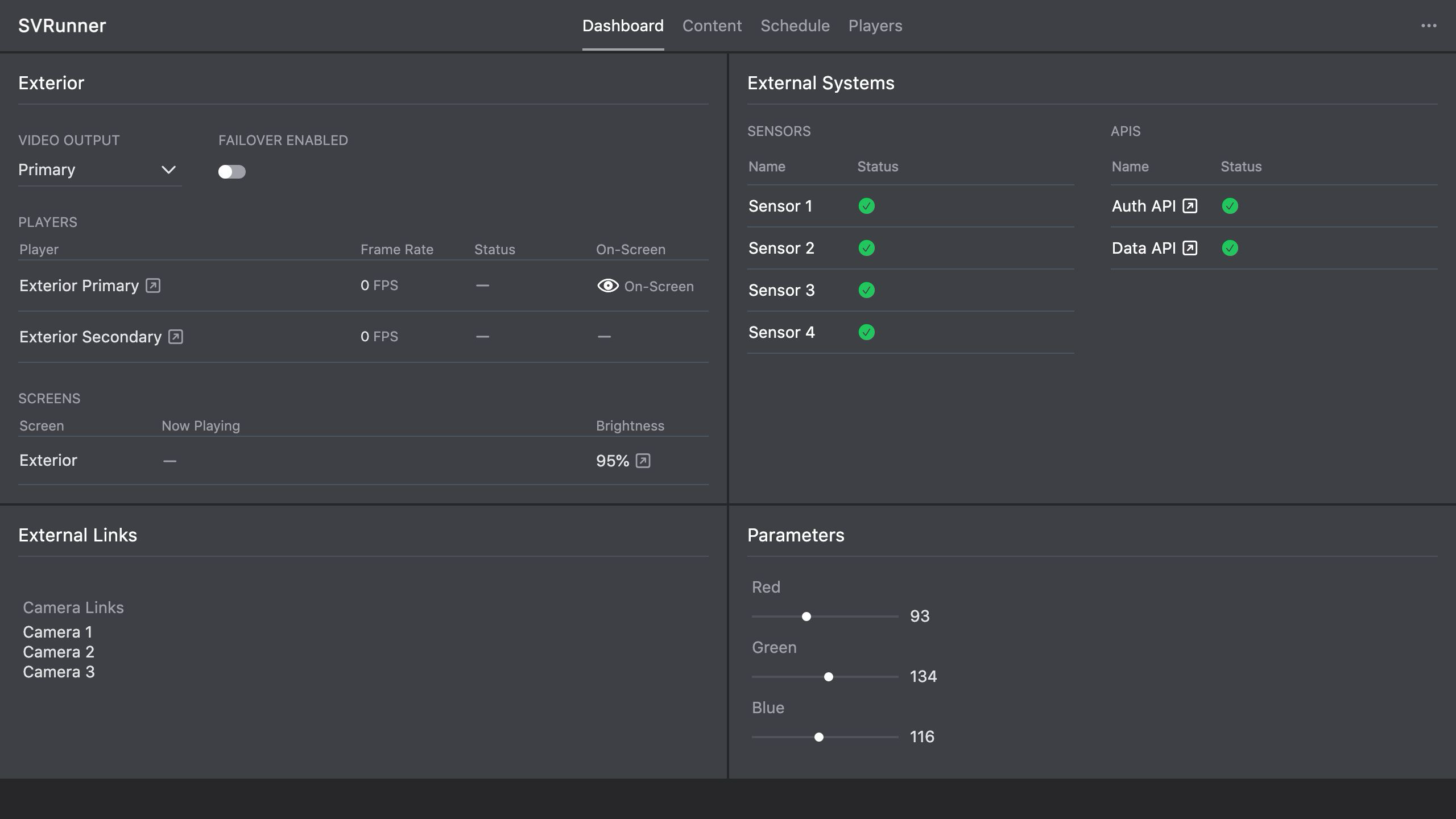 Stub screenshot: calendar with one screen selected and several differently colored events visible across a representative schedule. Save final image at
 packages/docs/screenshots/app-calendar-view.png.
Operational Guidance
Use The Calendar For Conflict Detection
The calendar is the fastest place to notice:
- overlapping event windows
- missing coverage during expected hours
- events scheduled on the wrong screen
- content that was created but never published
Pair The Calendar With Preview
The calendar tells you what is scheduled. Preview tells you what will actually play.
Use both when:
- multiple events overlap
- you are using Percent Share, Play Count, or Play At
- a screen has strict timing requirements
- you are preparing a high-visibility content change
Avoid Screen Selection Mistakes
In multi-screen deployments, a common operator mistake is editing the right event on the wrong screen.
Always verify the selected screen before creating or changing an event.