Layouts
Layouts define how grouped content is composed visually. They are most useful when a scheduled item should contain multiple layers or mixed content arrangements instead of a single asset or asset block.
When To Use Layouts
Use a layout when you need:
- multiple layers of content presented together
- spatial composition on a screen
- a reusable grouped presentation structure
- scheduled content that combines assets and asset blocks in one composed item
Use a normal Asset or Asset Block when you do not need layered composition.
What A Layout Contains
A layout currently includes:
- a name
- an optional screen association
- an optional output association
- one or more layers
Each layer can define its own visual properties such as:
- resolution
- transform
- scale
- rotation
- z-index
This makes layouts one of the more technical content objects in the web application.
General Layout Fields
Name
Use a descriptive name that reflects the presentation purpose.
Examples:
Lobby Split ScreenTwo-Zone Promo LayoutOutput Switch Fallback
Screen
The screen association helps connect the layout to the intended display context.
Output
Layouts can also be associated with an output.
In the current UI, layouts with no layers but with an output association may behave more like an output-switch item than a visual multi-layer composition.
Layers
Layers are the core of a layout.
Each layer currently has editable properties including:
- name
- width and height
- transform
xandy - scale
xandy - rotation
- z-index
These settings determine where content appears and how it is stacked relative to other layers.
Building A Layout
Typical workflow:
- create the layout
- set the name
- choose the relevant screen or output if needed
- add one or more layers
- configure each layer's size, position, scale, and order
- save the layout
- use it in a sequence and validate the result
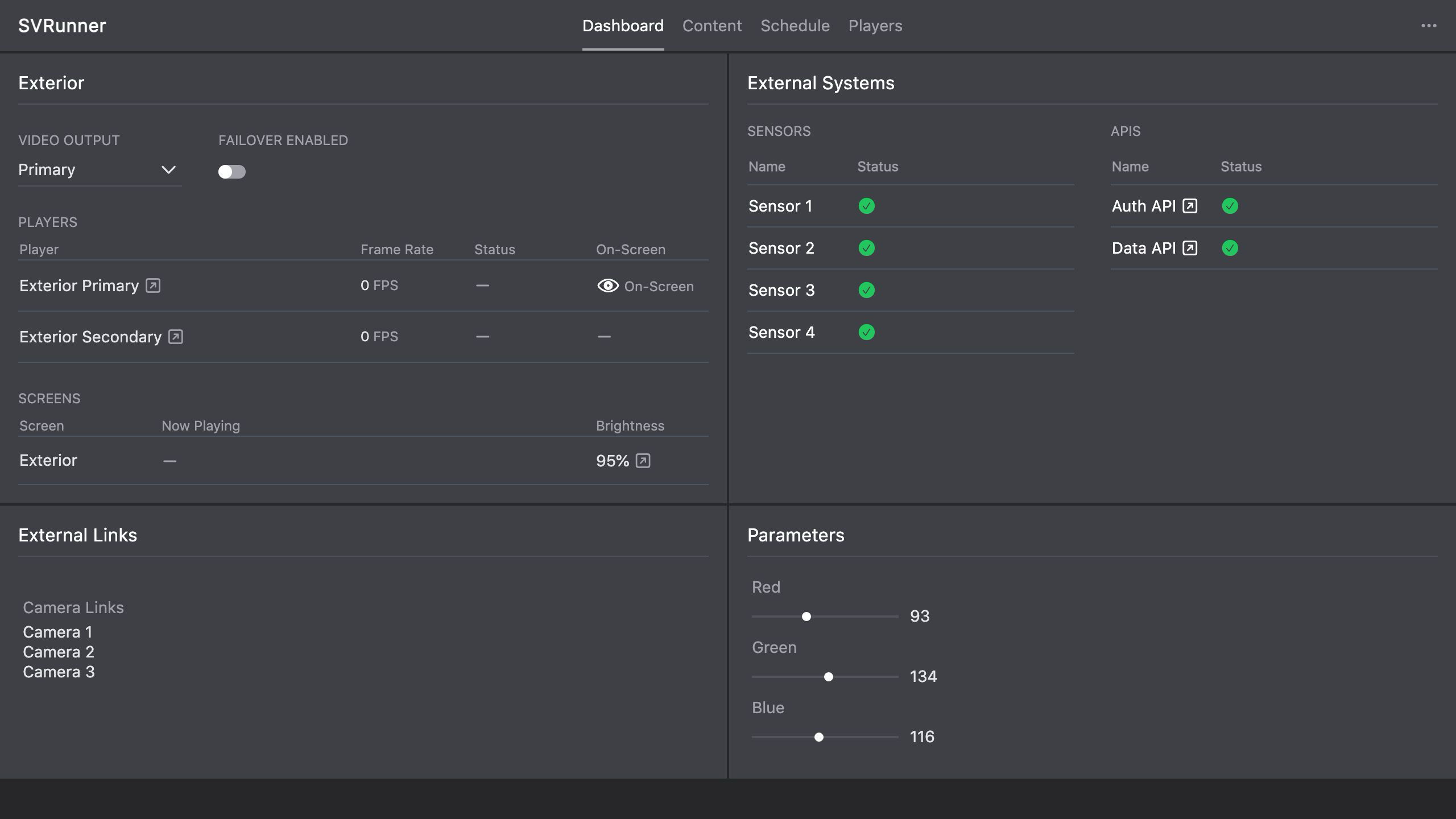 Stub screenshot: layout sidebar with the General section and at least two expanded layers visible. Save final image at
 packages/docs/screenshots/app-layout-sidebar.png.
Layout Items In Sequences
Layouts can be added into event sequences as scheduled items.
When a layout is expanded in the current UI, operators can see the layered content structure, including:
- assets
- asset blocks
- layer names
This is useful when confirming what a scheduled layout actually contains without reopening the layout editor.
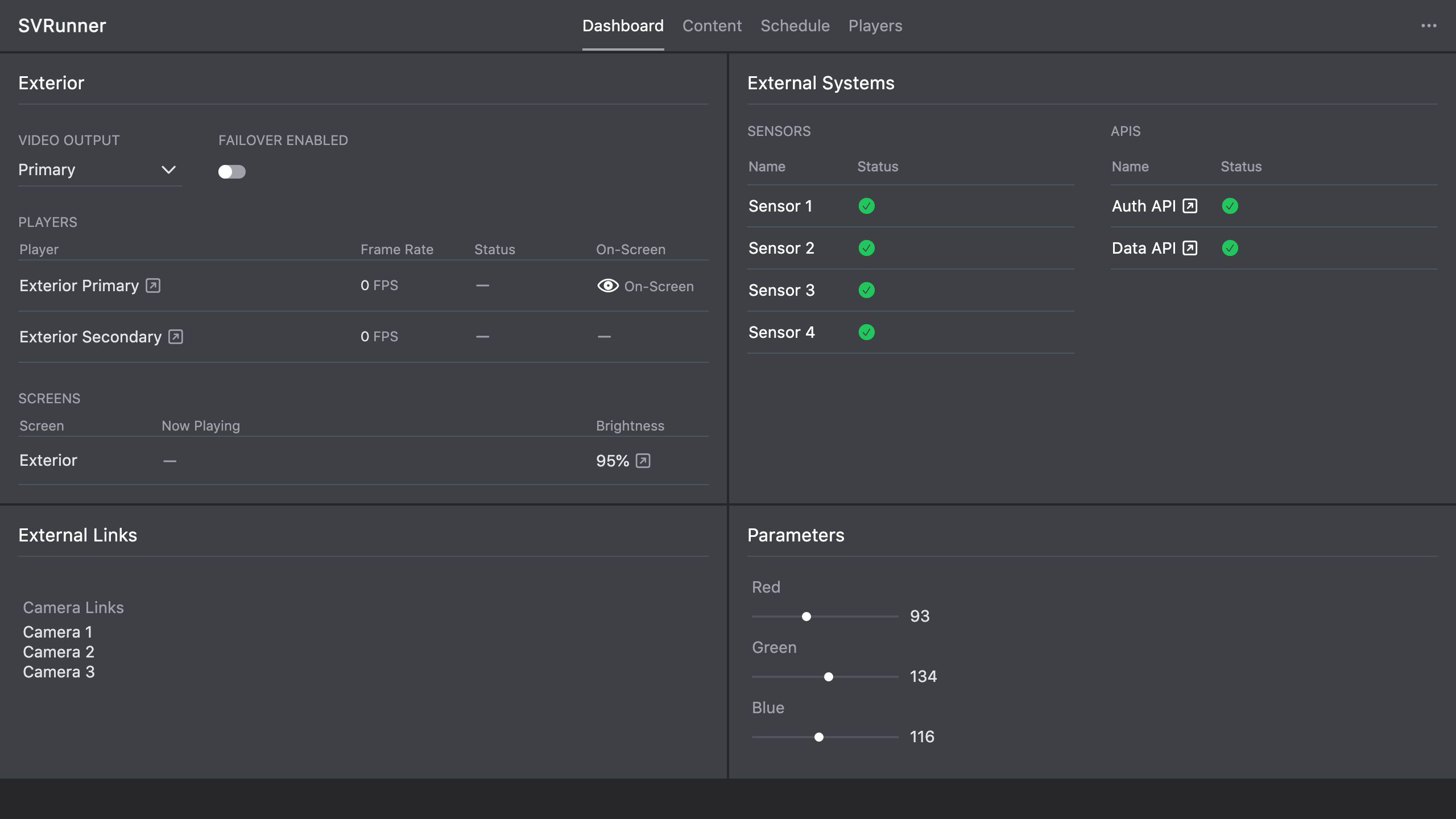 Stub screenshot: layout item expanded inside a sequence showing layer names and contained assets or asset blocks. Save final image at
 packages/docs/screenshots/app-layout-sequence-expanded.png.
Operational Guidance
Treat Layout Changes As Visual Changes
Even a small layer transform or z-index change can alter what appears live on-screen.
After editing a layout, validate both:
- the generated schedule context in preview
- the live result if the layout is already in use
Keep Layer Names Meaningful
Clear layer names make troubleshooting much easier, especially when operators expand a layout inside a sequence.
Watch For Reuse Impact
Layouts are reusable objects. Changing a shared layout can affect multiple events and screens if that layout is used widely.
Common Mistakes
- using a layout when a simple asset block would be easier
- changing a shared layout without checking where else it is used
- forgetting to validate transforms and z-order after edits
- using unclear layer names that make support harder