Players
Players are the runtime playback systems that SVRunner monitors and manages. The Players area is where admins define player identity and assignment, and where operators interpret player health during daily operations.
What A Player Represents
A player typically has:
- a name
- a target assignment
- a role
- an IP address or network address
- optional node information
Players are part of the display topology that ultimately drives what appears on screens.
Key Player Fields
Name
Use a clear, operationally meaningful name.
Good examples include:
- physical location
- rack or enclosure identifier
- display wall position
Target
The Target assignment connects the player to the relevant playback/output context.
This is important because operator-facing health views often evaluate player status in relation to the assigned output path.
Role
Players can be assigned a role such as:
- Primary
- Secondary
These roles matter in output and failover workflows, especially when one player is expected to be on-screen and another acts as backup or alternate output.
Address
The Address field is the network location used to identify the player.
Use a stable value that matches the deployment's network design.
Node
The Player Is Node setting and numeric node field appear to support multi-node or indexed player behavior in certain deployments.
If your installation does not use node-based addressing or grouping, document a local convention and keep its usage consistent.
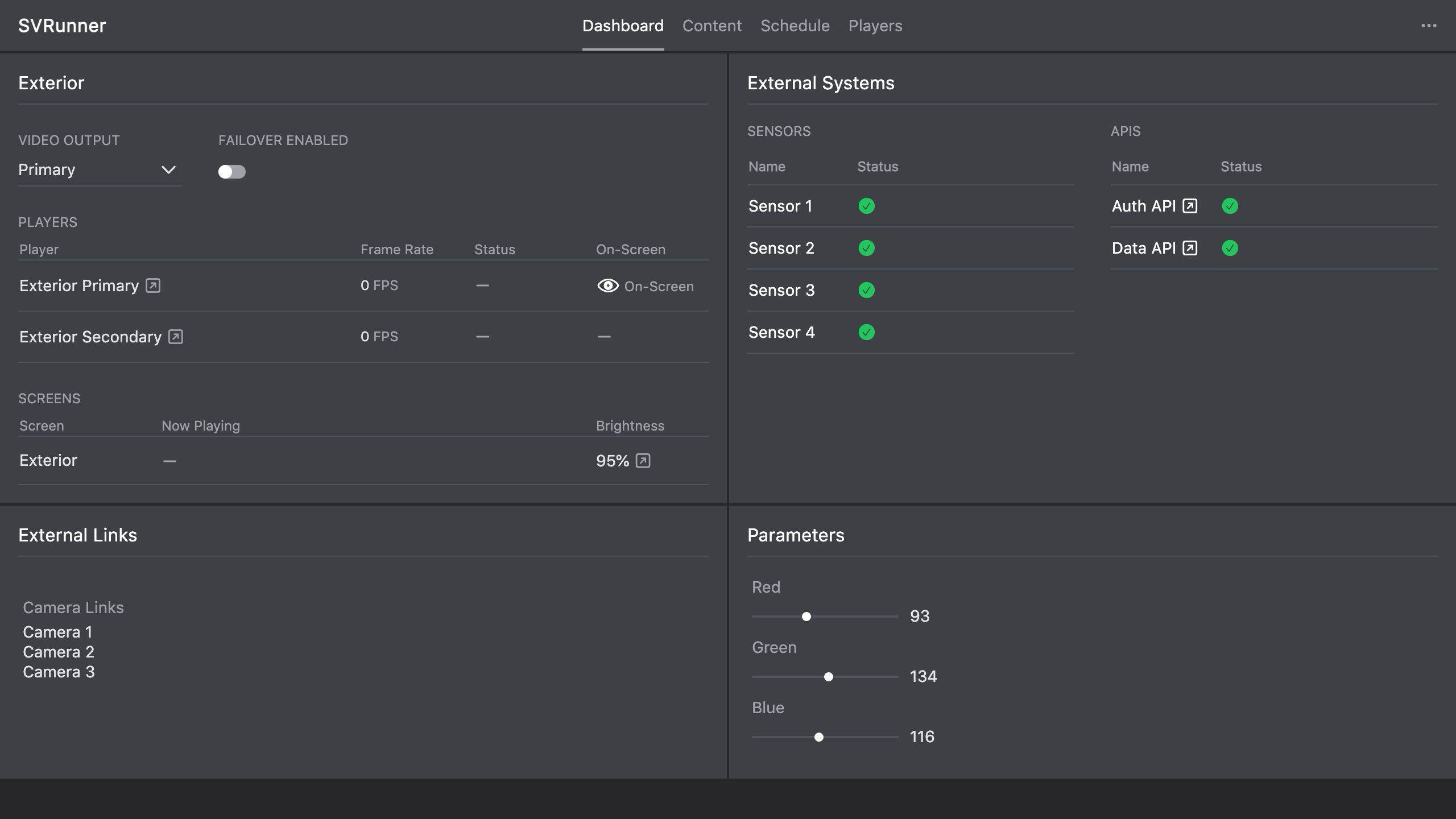 Stub screenshot: player detail sidebar showing name, target, role, address, and node settings. Save final image at
 packages/docs/screenshots/app-player-sidebar.png.
What Operators Usually Care About
Most operators are less concerned with editing player configuration than with understanding whether a player is healthy.
Common health indicators include:
- whether the player is currently alive
- whether a recent heartbeat has been received
- whether an error is present
- frame rate information
- whether the player is currently the on-screen output path
The dashboard and target-related views are often the fastest places to inspect this information.
Status Interpretation
In the UI, player health commonly appears as one of the following states:
- healthy and currently reporting
- not recently seen
- in an explicit error state
- not the active on-screen output
Frame rate is also exposed in some views and can help identify degraded playback even when the player is still technically online.
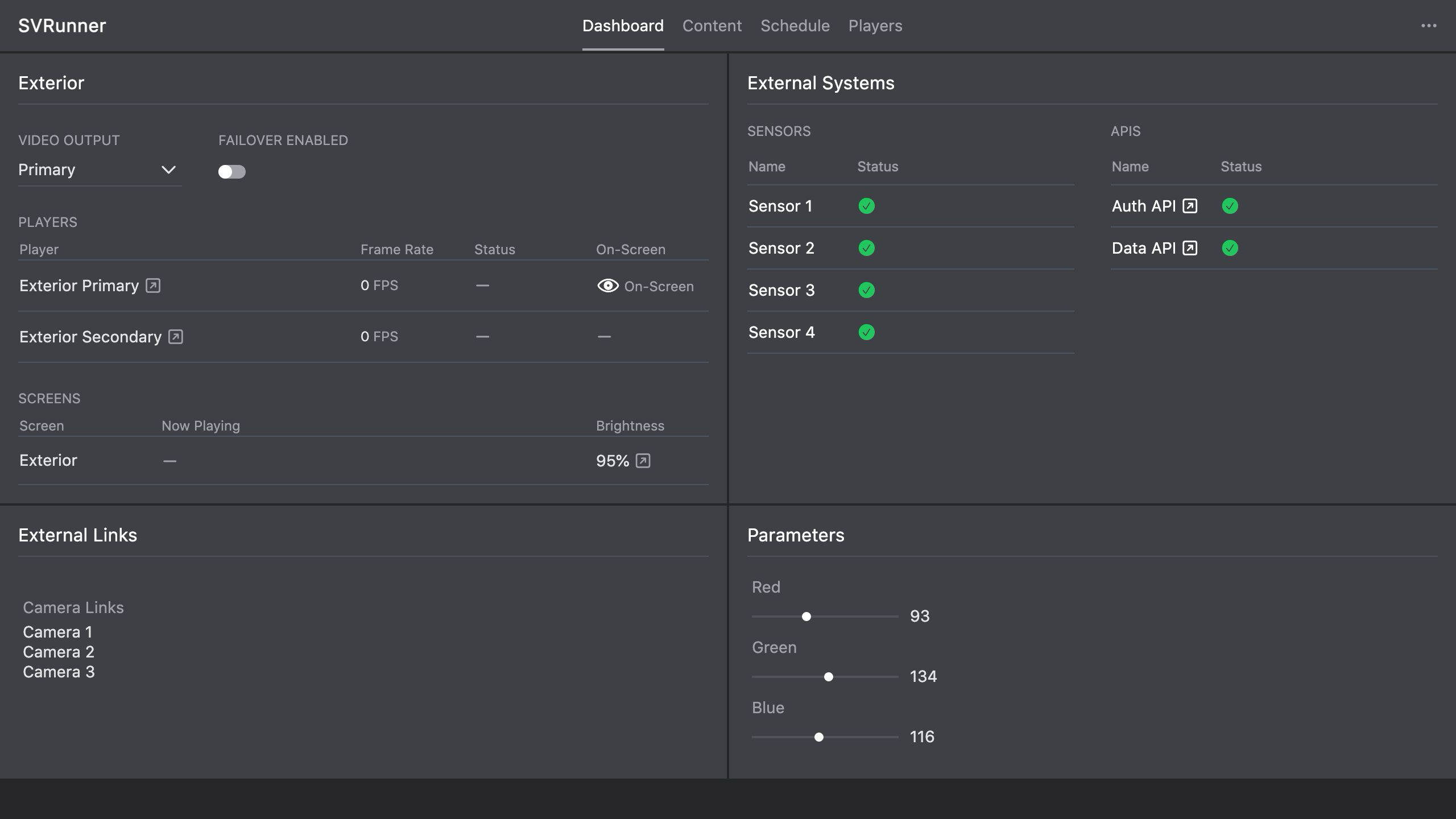 Stub screenshot: player status table or dashboard panel showing a healthy player, frame rate, and on-screen status. Save final image at
 packages/docs/screenshots/app-player-status-panel.png.
Typical Admin Workflow
- Create or locate the player record.
- Set a clear name.
- Assign the correct target.
- Set the correct role.
- Enter the correct address.
- Configure node details if the deployment uses them.
- Save and verify that the player appears healthy in operational views.
Operational Troubleshooting
When a player appears unhealthy, check the following in order:
- Confirm the player is reachable on the network.
- Confirm the configured address is correct.
- Confirm the player is assigned to the correct target.
- Check whether the player has a visible error in the UI.
- Compare the player role to the active output path.
- Review logs and target status if the player is online but not on-screen.
Common Mistakes
- assigning the player to the wrong target
- confusing Primary and Secondary roles
- leaving a stale IP address after hardware replacement
- using inconsistent naming conventions across a fleet
- assuming a player is healthy just because it is online, without checking frame rate or output status