Day-To-Day Operations
This page summarizes the normal daily workflow for operators and admins. It is intended as the practical runbook for routine operation rather than deployment or deep troubleshooting.
Daily Operating Cycle
For most teams, daily work follows this pattern:
- confirm the system is healthy
- review any planned content changes
- update assets or schedules as needed
- validate results in preview
- monitor the live state through the dashboard
- use logs or escalation paths if something looks wrong
Start-Of-Shift Checks
At the start of a shift, operators should check:
- the dashboard for target, player, and system health
- whether Quick Play is enabled or disabled as expected
- whether any screens or players look degraded
- whether any planned schedule changes are pending review
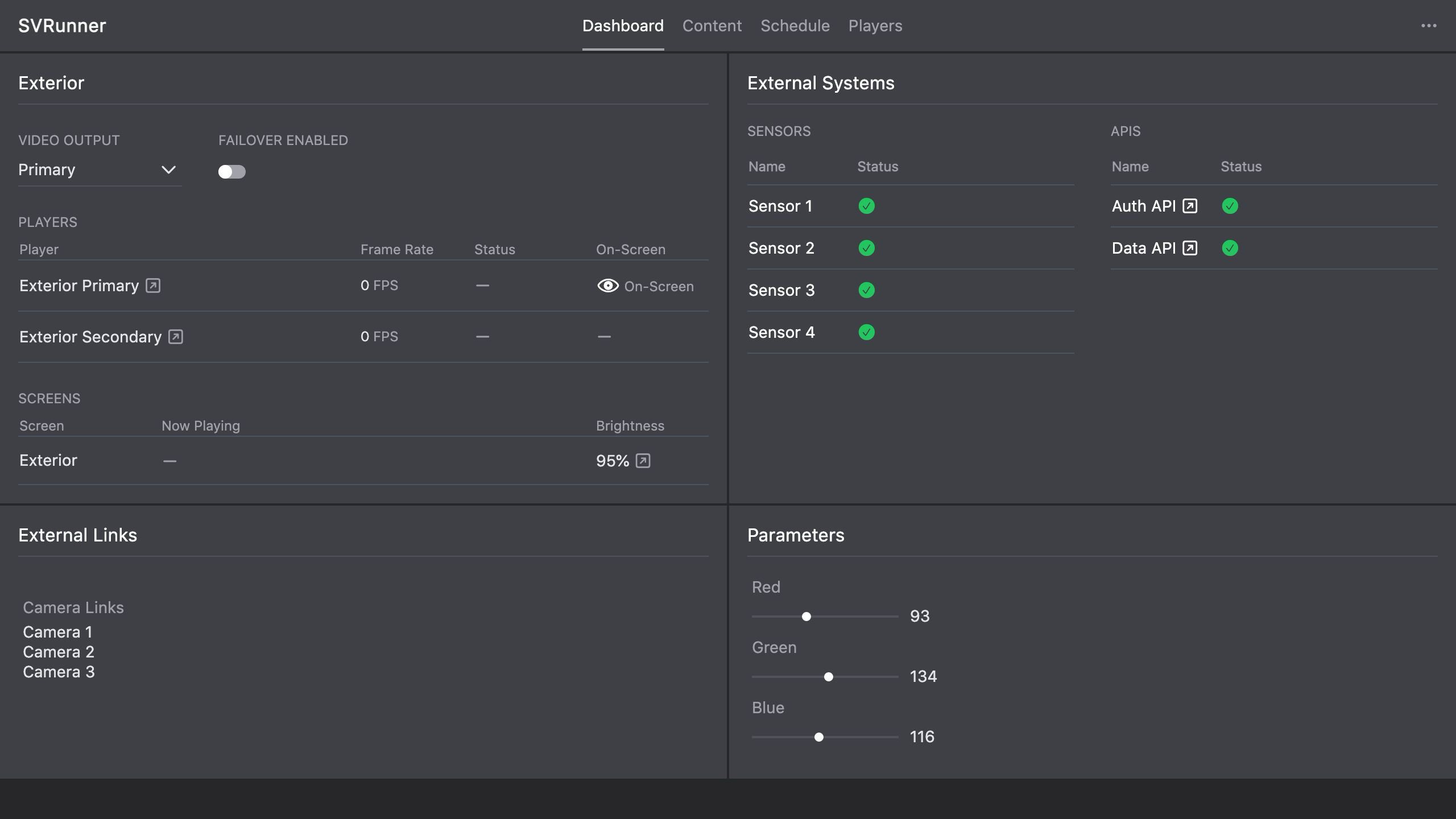 Stub screenshot: start-of-shift dashboard view showing target health, Quick Play state, and systems status. Save final image at
 packages/docs/screenshots/operations-start-of-shift-dashboard.png.
If the system already looks degraded at the start of a shift, move into the relevant troubleshooting workflow before making new changes.
Routine Content Workflow
The normal content workflow is:
- upload or review assets
- organize assets with tags or asset blocks if needed
- edit or create events
- confirm the targeted screens
- review the calendar placement
- use preview to validate the generated result
- publish when ready
See Content Publishing.
Schedule Validation Workflow
Operators should treat preview as a standard part of daily work, especially when:
- multiple events overlap
- timing matters
- Quick Play was recently used
- a screen serves high-visibility content
The safest sequence is:
- confirm the selected screen
- confirm the intended time window
- review preview
- compare with the calendar if anything looks unexpected
Quick Play Usage Boundaries
Quick Play should remain a temporary override tool.
Use it for:
- urgent overrides
- short manual takeovers
- controlled testing on selected screens
Do not use it as a replacement for normal scheduling unless the site has a deliberate operational policy for doing so.
Before ending a shift or handoff, always confirm whether Quick Play is still active.
What Operators Should Escalate
Operators should escalate to admins or deeper support when they see:
- repeated player or output instability
- degraded systems that affect operation
- schedule results that do not match preview or documented behavior
- upload or processing problems that affect multiple assets
- authentication or license issues
What Admins Usually Handle
Admins usually own:
- preferences and defaults
- users and access changes
- extensions and schema changes
- system integrations and restart controls
- deployment-level recovery actions