Monitoring And Health
Monitoring and health checks are the foundation of day-to-day operations. SVRunner gives operators several ways to assess whether the system is healthy, but the dashboard is usually the first place to look.
Primary Health Views
The main health signals are typically available through:
- the dashboard
- target panels
- player status tables
- screen-related preview and now-playing views
- systems panels
- logs and reports
Use these together rather than relying on a single metric.
What Healthy Usually Looks Like
In a healthy system, you should generally see:
- expected targets present on the dashboard
- players actively reporting in
- reasonable frame rates
- expected output paths marked on-screen
- Quick Play in the expected state
- systems online or at least not unexpectedly degraded
- preview results matching expected schedule behavior
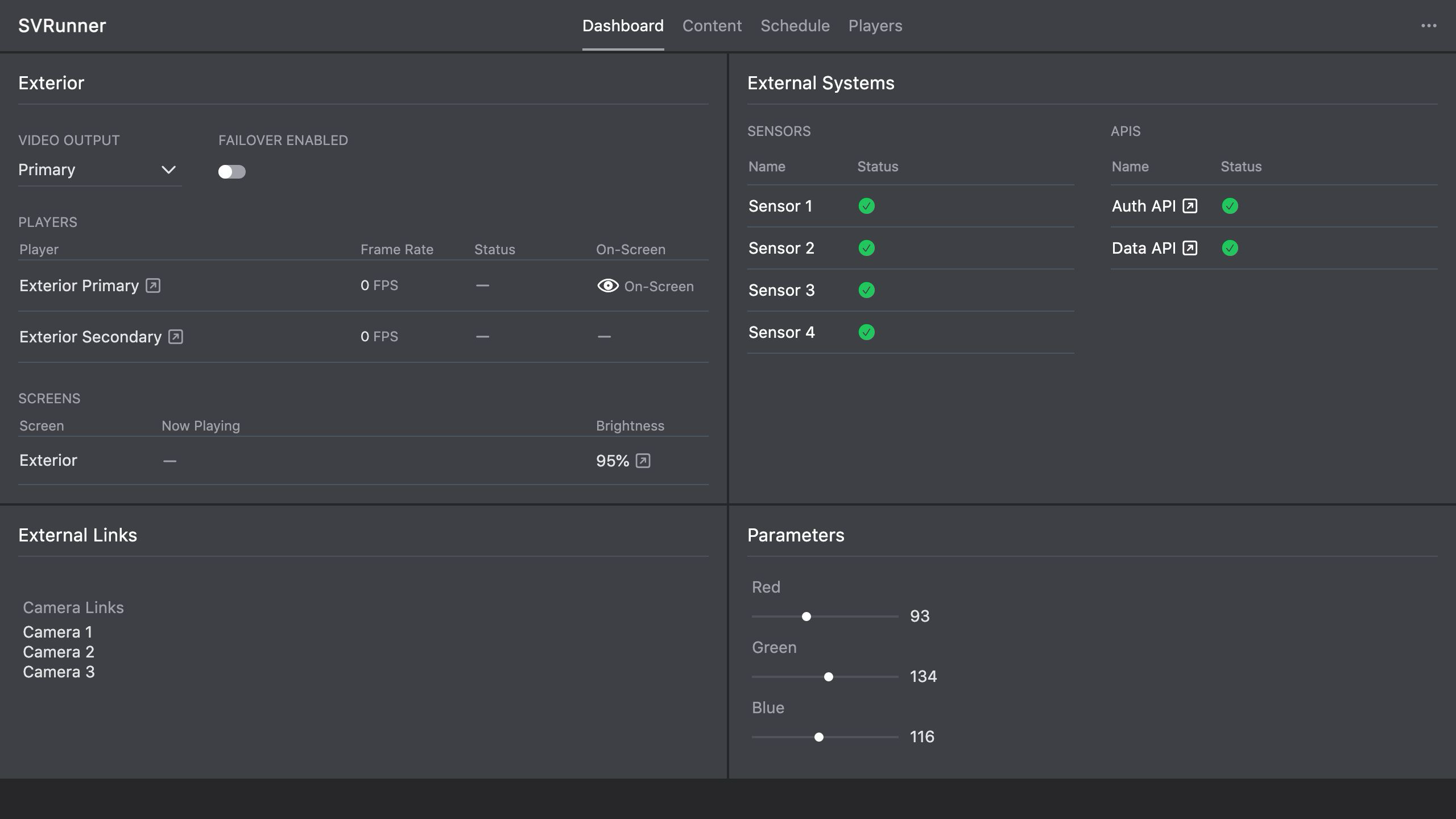 Stub screenshot: realistic dashboard state including one healthy target panel and one panel with a visible warning or degraded condition. Save final image at
 packages/docs/screenshots/operations-monitoring-dashboard-states.png.
Dashboard-First Workflow
At the start of a shift or incident review:
- open the dashboard
- inspect target panels for visible output problems
- check player health and frame rate
- confirm whether Quick Play is enabled
- inspect systems for offline or degraded state
- move into preview, logs, or player views if anything looks wrong
Player Health Signals
Player status is one of the clearest indicators of runtime health.
Watch for:
- whether the player is alive
- when it was last seen
- explicit error messages
- frame rate degradation
- whether it is the active on-screen path
An online player with poor frame rate can still represent a degraded experience.
Screen And Target Health Signals
Target and screen panels help answer:
- what is on-screen right now?
- is the intended output active?
- is brightness behaving as expected?
- does preview reflect the live result you expect?
When these signals disagree, investigate before assuming the schedule itself is wrong.
Quick Play Health Check
Always confirm whether Quick Play is active.
Unexpected Quick Play state is a common reason playback differs from what operators expect from the calendar or normal event schedule.
Systems Health
Systems panels should be treated as operational dependencies.
If an external system is degraded or offline:
- note whether the issue is expected or known
- determine whether it affects playback, automation, or monitoring
- escalate to an admin if the system is required for normal operation
When To Use Preview
Preview is part of health validation, not just content planning.
Use it when:
- playback looks wrong but the calendar looks correct
- overlapping events make the generated result hard to predict
- a screen has strict timing requirements
- a change was just made and needs validation
When To Use Logs
Move to logs when you need evidence rather than just a current-state view.
Logs are especially useful when:
- an asset should have played but did not
- playback timing is disputed
- player or screen behavior needs historical confirmation
- an issue is intermittent
Escalation Triggers
Escalate or investigate further when you see:
- players repeatedly dropping offline
- sustained low frame rate
- output mismatch or failover behaving unexpectedly
- systems panels showing degraded dependencies
- preview consistently disagreeing with live playback
- repeated upload, processing, or schedule generation issues