Logs And Reporting
This page explains how operators and admins should use logs and reporting during daily operations, incident review, and playback verification.
What This Page Covers
Use logs and reporting when you need evidence of what played rather than a current-state health view.
This is the right workflow for:
- playback confirmation
- incident review
- client reporting
- support escalation
- historical verification
Main Workflow
The normal reporting workflow is:
- open the Logs area
- choose the reporting window
- filter by screen, player, or asset if needed
- review the asset play summary
- inspect detailed playback entries
- export a CSV or per-asset report when needed
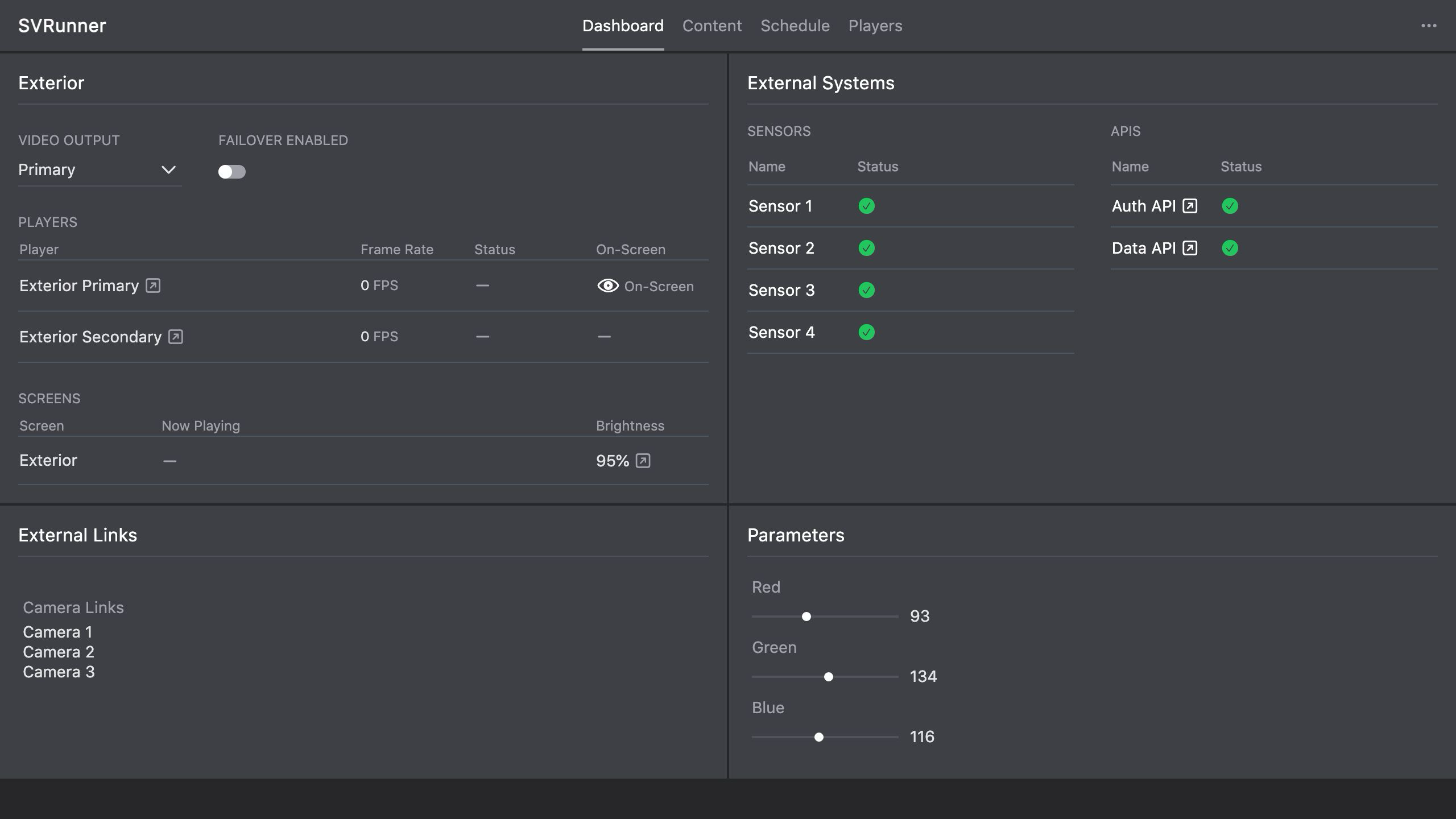 Stub screenshot: Logs page with a filled reporting form, the asset play summary visible, and detailed playback rows below. Save final image at
 packages/docs/screenshots/operations-logs-report-summary.png.
What To Review First
During incident response, start with:
- the reporting window
- the affected screen
- the affected player if known
- the asset or asset group involved
This reduces the risk of drawing conclusions from the wrong time range or display path.
Summary And Detail Views
The current Logs UI supports both:
- a summary-style view of asset totals and durations
- detailed playback rows for the filtered period
Use the summary when you need fast confirmation, and the detailed rows when you need exact evidence.
Export Workflows
Exports are useful when:
- another team needs the data
- a client needs a playback report
- an admin or developer needs evidence for debugging
- the issue spans multiple assets or a long reporting window
The current UI supports:
- CSV export for the current report window
- asset-specific report downloads from the summary view
During Incident Response
When playback is disputed or unclear:
- use the dashboard to confirm current health
- use preview to understand the expected result
- use logs to confirm what actually played
- export the relevant data before escalating if the issue is ongoing or difficult to reproduce
Operational Guidance
- logs are best treated as evidence, not estimation
- always verify the selected filters before exporting a report
- export first if you think the issue may be transient or difficult to reproduce later