Preview
Preview shows the generated playlist for a selected screen at a selected time. It is the best tool for verifying how scheduled events will actually resolve before relying on the result in production.
What Preview Shows
Preview is based on the generated schedule, not just the visible event list.
For a selected screen and time, the preview view can show:
- the generated playlist order
- the screen being evaluated
- the date and hour used for generation
- optional unpublished content when enabled
- playlist stats for assets and asset blocks
How Operators Reach Preview
Operators commonly reach preview from the calendar workflow.
- open the calendar
- choose a screen and time window
- open preview for the relevant hour or scheduling context
- inspect the generated playlist before publishing or relying on the schedule
Preview links are also exposed in some screen and target views for direct playback inspection.
What Preview Is Based On
Preview uses the schedulePreview API query for a specific:
screenIdtimeshowUnpublishedflag
The client requests this data with a network-only fetch policy, which means preview is intended to reflect current server state rather than stale cached data.
Typical Operator Workflow
- Open preview from the calendar or related screen workflow.
- Select the correct date and hour.
- Confirm the selected screen.
- Decide whether unpublished content should be included.
- Review the generated playlist order.
- Open Stats if you need asset or asset-block distribution details.
- Return to the calendar or event editor if the result is not what you expected.
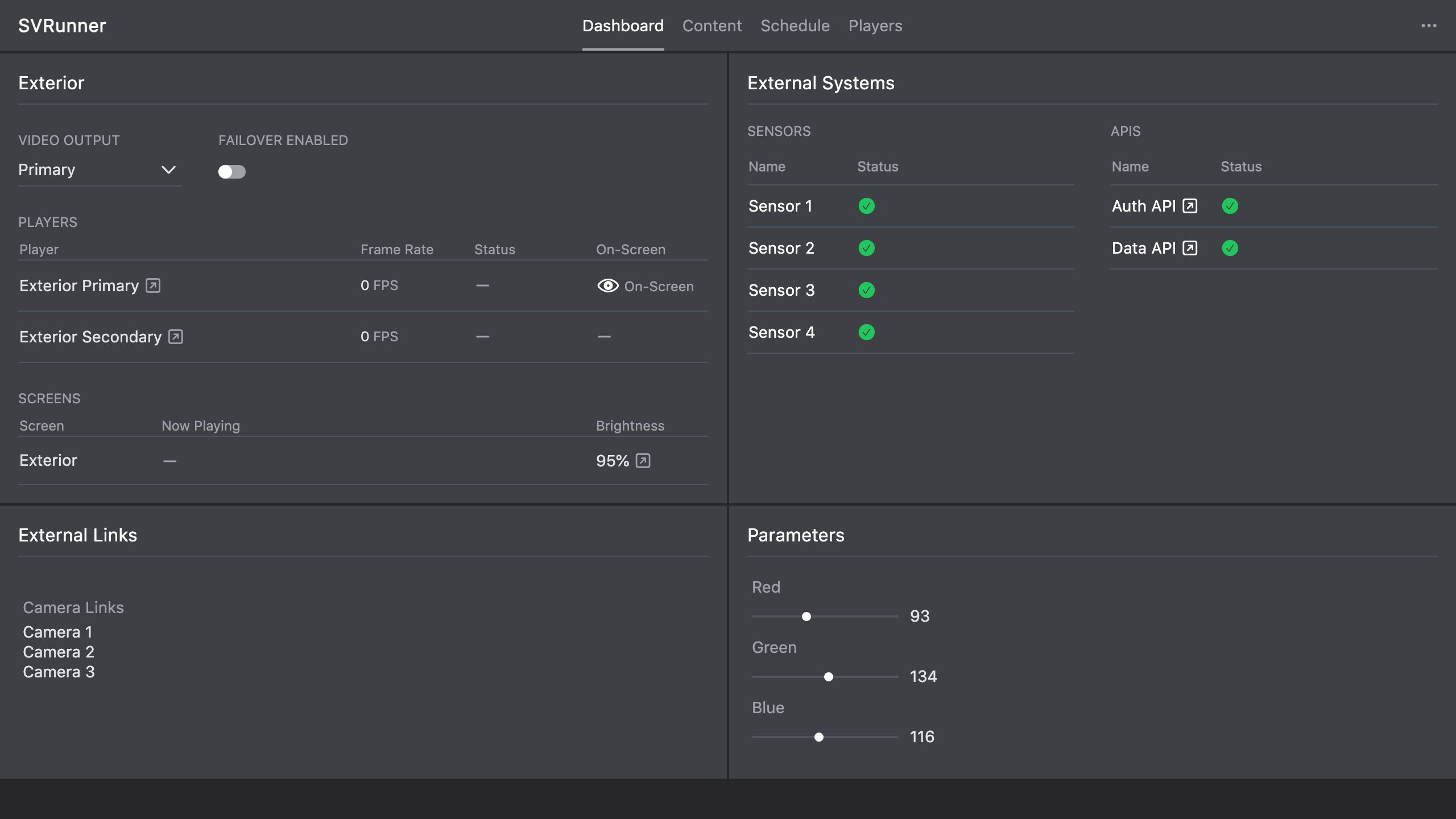 Stub screenshot: preview page with date, hour, screen selector, and generated playlist all visible. Save final image at
 packages/docs/screenshots/app-preview-page.png.
Show Unpublished
The preview workflow can optionally include unpublished items.
This is useful when:
- preparing a change before publishing
- comparing draft content with the current live schedule
- validating event logic before making it active
Be careful not to confuse a draft preview result with live playback.
Stats View
The Stats section helps operators understand how the generated hour is distributed.
Stats are useful for confirming:
- whether an asset or asset block appears at all
- how often a scheduled item appears in the hour
- whether a Percent Share or Play Count rule is behaving as expected
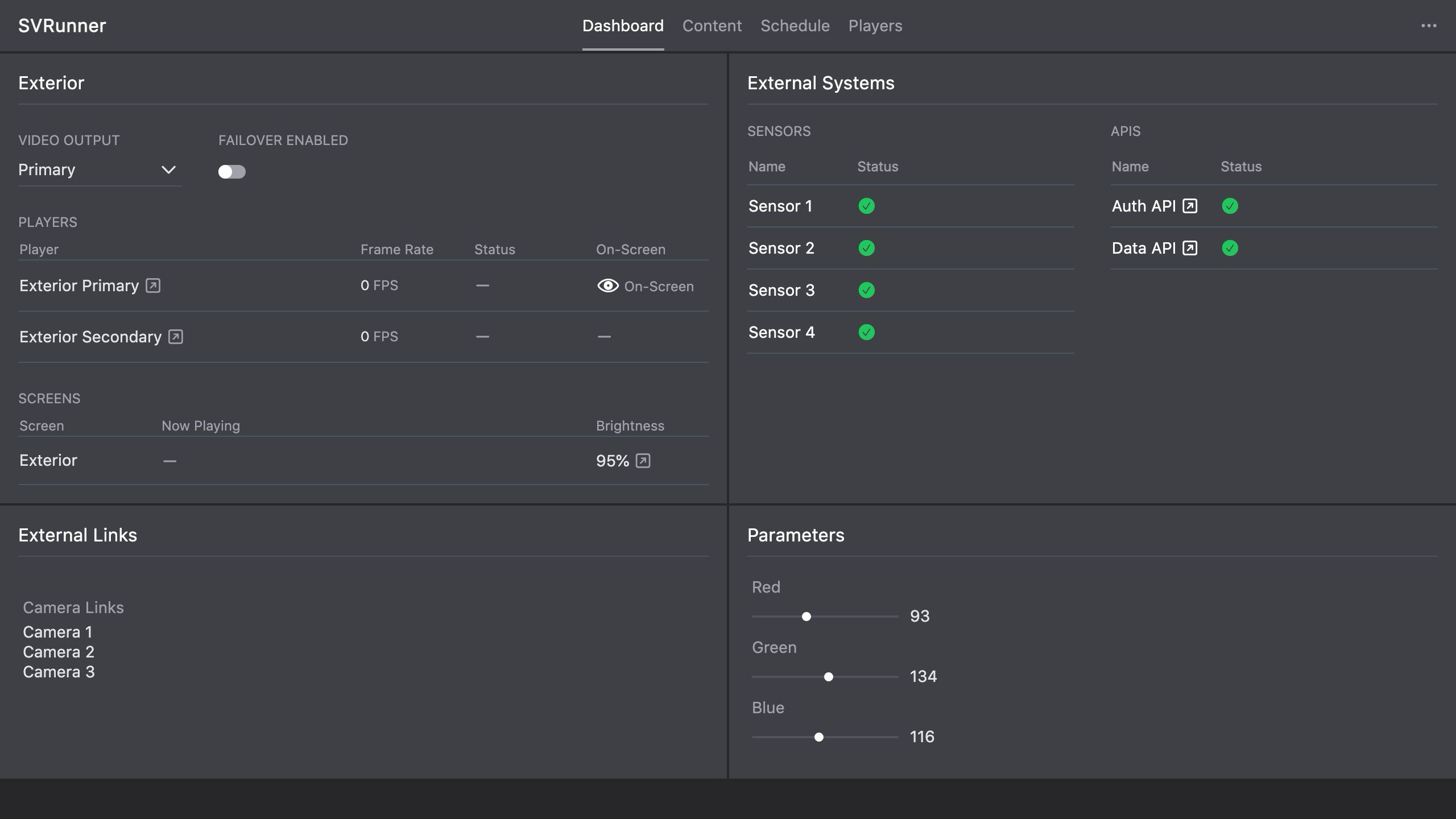 Stub screenshot: Stats section expanded so the play counts or percentage distribution for assets and asset blocks are visible. Save final image at
 packages/docs/screenshots/app-preview-stats.png.
When Preview Is Most Important
Use preview any time the result depends on overlapping event logic, including:
- Percent Share
- Play Count
- Play At
- Filler
- mixed published and unpublished planning
- timing-sensitive screen programming
Operational Caveats
Preview Verifies The Result, Not The Intent
An event may look correct in the calendar but still produce an unexpected generated playlist because of overlapping rules or timing details.
Preview is the place to catch that.
Screen Selection Matters
Always confirm the selected screen before interpreting the result.
In multi-screen systems, a correct preview for the wrong screen can still lead to an operational mistake.
Timing Details Matter
Crossfade, event overlap, and hourly timing rules can change the effective generated order.
If a screen has strict timing requirements, treat preview as a required validation step.