Events
An event is the main scheduling unit in SVRunner. Events define when content is eligible to play, which screens it affects, and how it participates in playlist generation.
What An Event Contains
An event usually contains:
- a name
- an optional label color for calendar visibility
- one or more sequences
- a target screen for each sequence
- an occurrence type
- an active period that determines when the event is in effect
- a publication state
Events can contain both Assets and Asset Blocks.
Publication State
New events are unpublished by default.
An unpublished event does not participate in playlist generation.
Use unpublished events when preparing content ahead of time or when staging a change for later review.
Sequences And Screen Targeting
When you create an event, SVRunner starts with one sequence. Each sequence represents one screen within that event.
- each sequence belongs to a single screen
- add additional sequences if the same event should schedule content on additional screens
- each sequence can contain assets or asset blocks
This model lets one event coordinate related content across multiple screens while still keeping screen-specific content separate.
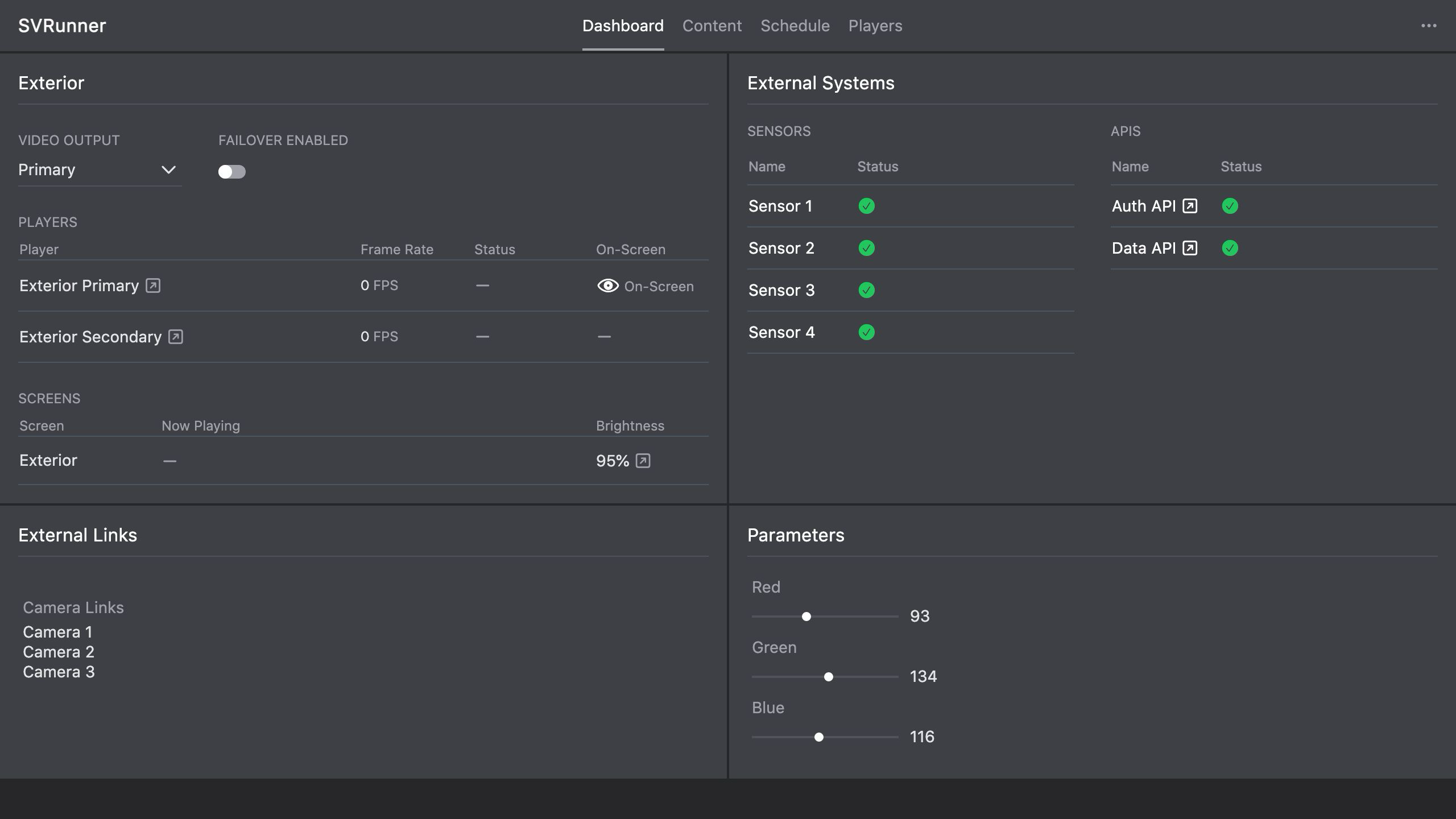 Stub screenshot: screen-selection UI used when adding or editing sequences for an event. Save final image at
 packages/docs/screenshots/app-event-screen-selection.png.
Adding Content To An Event
To populate a sequence:
- Open the event.
- Select the relevant sequence.
- Use the add action to insert assets or asset blocks.
- Arrange the sequence as needed.
- Save the event.
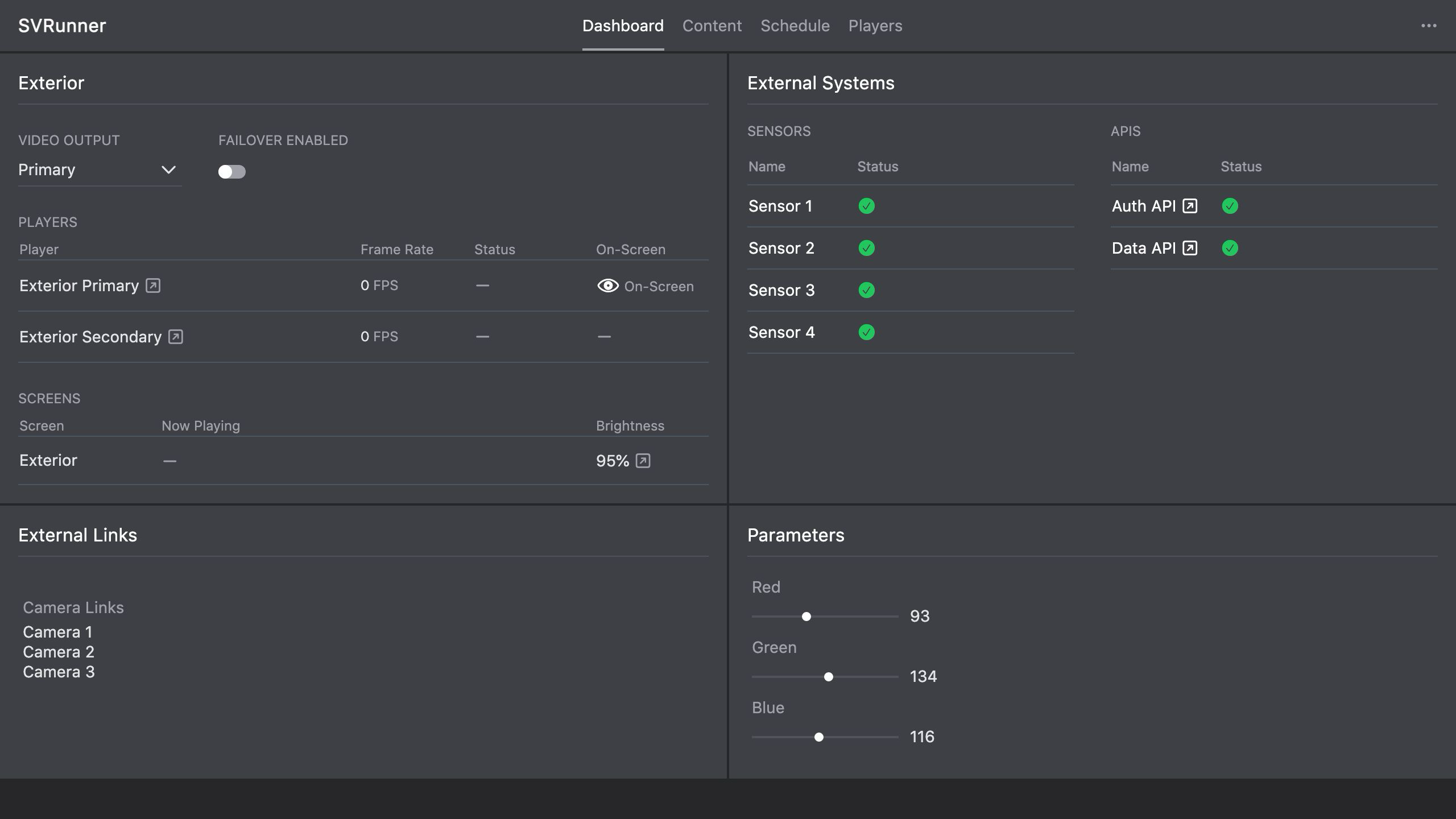 Stub screenshot: event editor with the event name, publication state, occurrence type, active period, and at least one populated sequence visible. Save final image at
 packages/docs/screenshots/app-event-editor.png.
Occurrence Types
The occurrence type controls how an event contributes to the generated playlist when multiple events overlap.
Filler
Use Filler when the event should supply content only where open time remains in the generated playlist.
This is useful for background programming that should not displace more specific scheduled material.
Loop
Use Loop when the event should take exclusive control of playback for its active window.
- items are played immediately and in sequence order
- loop events behave more like a dedicated override block than a balancing rule
- if multiple loop events overlap, the loop event with the most recent start time wins
If loop events share the same start time, the older created event wins.
Loop-specific behaviors may include:
- Shuffle Sequences: randomize sequence item order
- Rotate Asset Blocks: rotate through the assets inside each asset block over repeated uses
Never
Use Never to keep an event in the system without allowing it to generate playback.
This is useful for temporarily disabling an event without deleting it.
Percent Share
Use Percent Share when the event should occupy a percentage of the playlist.
This is useful when balancing two or more kinds of content, such as house content and advertising.
Play At
Use Play At when the event must start at specific times within the hour.
- play-at values are entered as
mm:ssfrom the top of the hour - valid values range from
00:00to60:00 - use the event's active period to control which hours are eligible
Play Count
Use Play Count when the event should appear a fixed number of times in each hour.
This is useful when exact hourly exposure matters more than percentage share.
How Overlapping Events Behave
When multiple non-loop events overlap in the same time range, SVRunner can combine them during playlist generation.
Non-loop overlap commonly includes:
- Percent Share
- Play Count
- Play At
- Filler
Loop events are different: an active loop event can take precedence over the rule-based event set for that time range.
For a more technical explanation of playlist generation, see Request And Playback Flow.
Active Period
The active period controls when the event is eligible to run.
Typical fields include:
- event start
- event end
- active hours
- active days
Use these carefully.
Loops restart from the beginning after an inactive hour or day, then continue seamlessly through consecutive active hours. For example, if 7 AM and 8 AM are disabled and 9 AM is active, the loop starts at 9:00 AM. If the event starts partway through an active hour, playback begins at the event start time.
Operator Workflow
For most operators, the safest event workflow is:
- Create the event.
- Name it clearly.
- Assign the correct screen or screens through sequences.
- Add assets or asset blocks.
- Set the occurrence type.
- Configure the active period.
- Review the event in the calendar.
- Use preview to confirm the generated result.
- Publish only after the result looks correct.
Common Mistakes
- forgetting to publish an event
- assigning content to the wrong screen sequence
- using
Loopwhen a rule-based occurrence type was intended - overlapping loop events without realizing only one will win
- changing active hours without checking preview
- forgetting to save after editing