Canvases And Outputs
Canvases and outputs define the display topology that connects players, screens, and failover behavior. This area is usually maintained by admins, but operators should understand it well enough to interpret system state during incidents.
What A Canvas Or Target Represents
In the current UI, much of this topology is managed through target-style configuration.
That configuration commonly includes:
- a name
- width and height
- node count
- failover mode
- active output selection
- output definitions
- commands for output control and active-output detection
Even if operators do not edit this often, this configuration explains how a display surface is expected to behave in production.
General Configuration
Typical top-level fields include:
- Name
- Width
- Height
- Nodes
These define the general display context and should match the physical or logical surface the target represents.
Failover
Failover determines how SVRunner responds when multiple output paths exist.
The current configuration supports at least:
AUTOMANUAL
In automatic failover mode, the system is expected to evaluate output state and switch according to configured logic.
In manual mode, operators or admins may need to intervene directly.
Active Output
The configured Output represents the expected active output role.
This is important because dashboard and player-related views may compare player role to output state to determine what is currently on-screen.
Output Definitions
Each target can define multiple outputs.
An output definition commonly includes:
- name
- role
- command
- output check
These definitions support:
- multiple playback paths
- active output determination
- controlled switching
- operational failover behavior
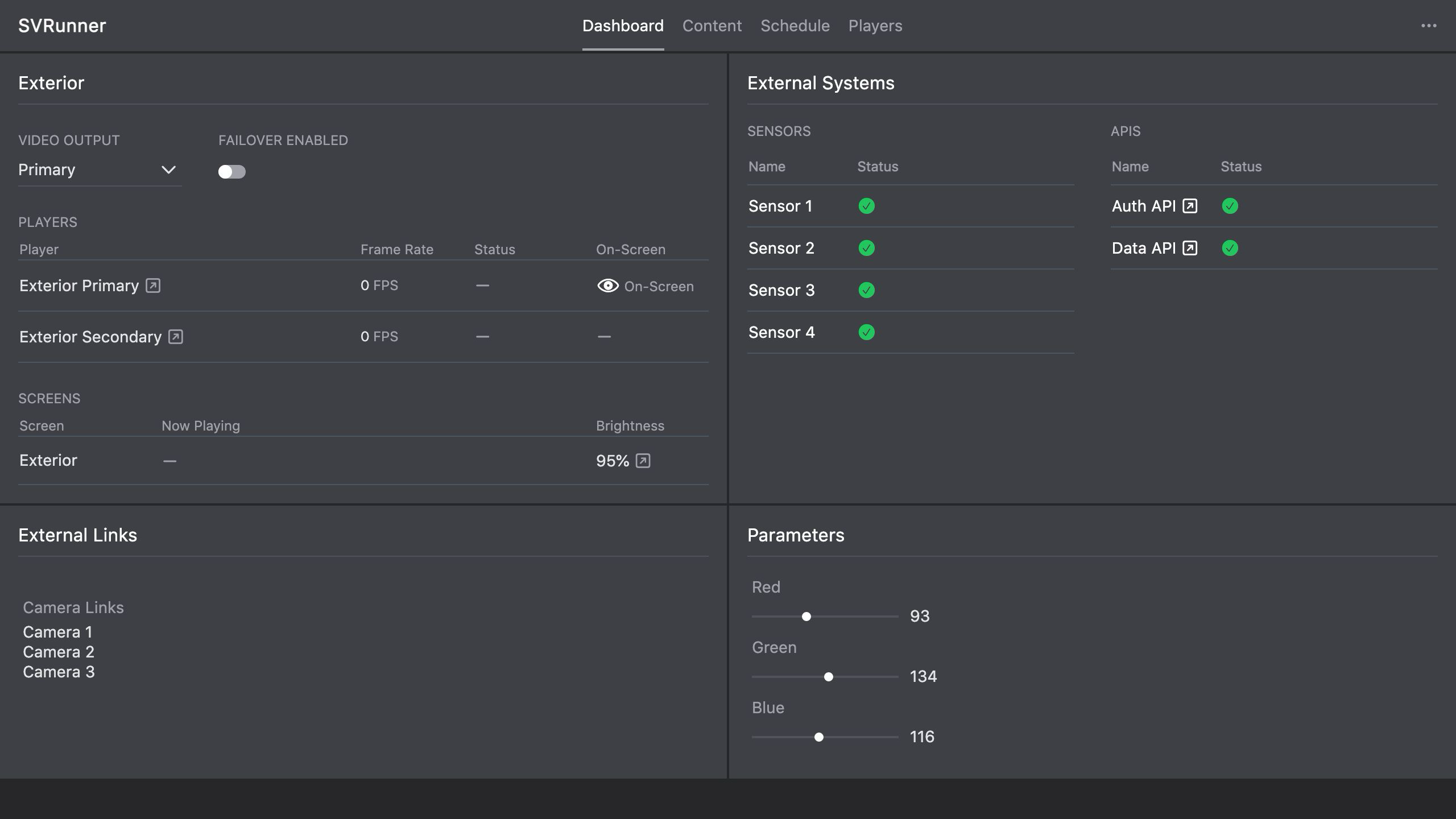 Stub screenshot: target or canvas sidebar with failover mode, active output, and at least two configured outputs visible. Save final image at
 packages/docs/screenshots/app-canvas-target-sidebar.png.
Output Commands And Checks
The UI exposes code-style fields for:
- checking the active output
- defining output commands
- defining output-specific checks
These are advanced, deployment-specific behaviors and should be changed carefully.
If your installation depends on them, document local conventions clearly and validate every change against real hardware behavior.
How This Relates To Players And Screens
- players are assigned into this topology through targets and roles
- screens rely on the topology for actual display routing
- preview helps validate scheduled content, but it does not replace validation of the real output path
When troubleshooting, operators often need to interpret all three together:
- the screen
- the player state
- the output or failover state
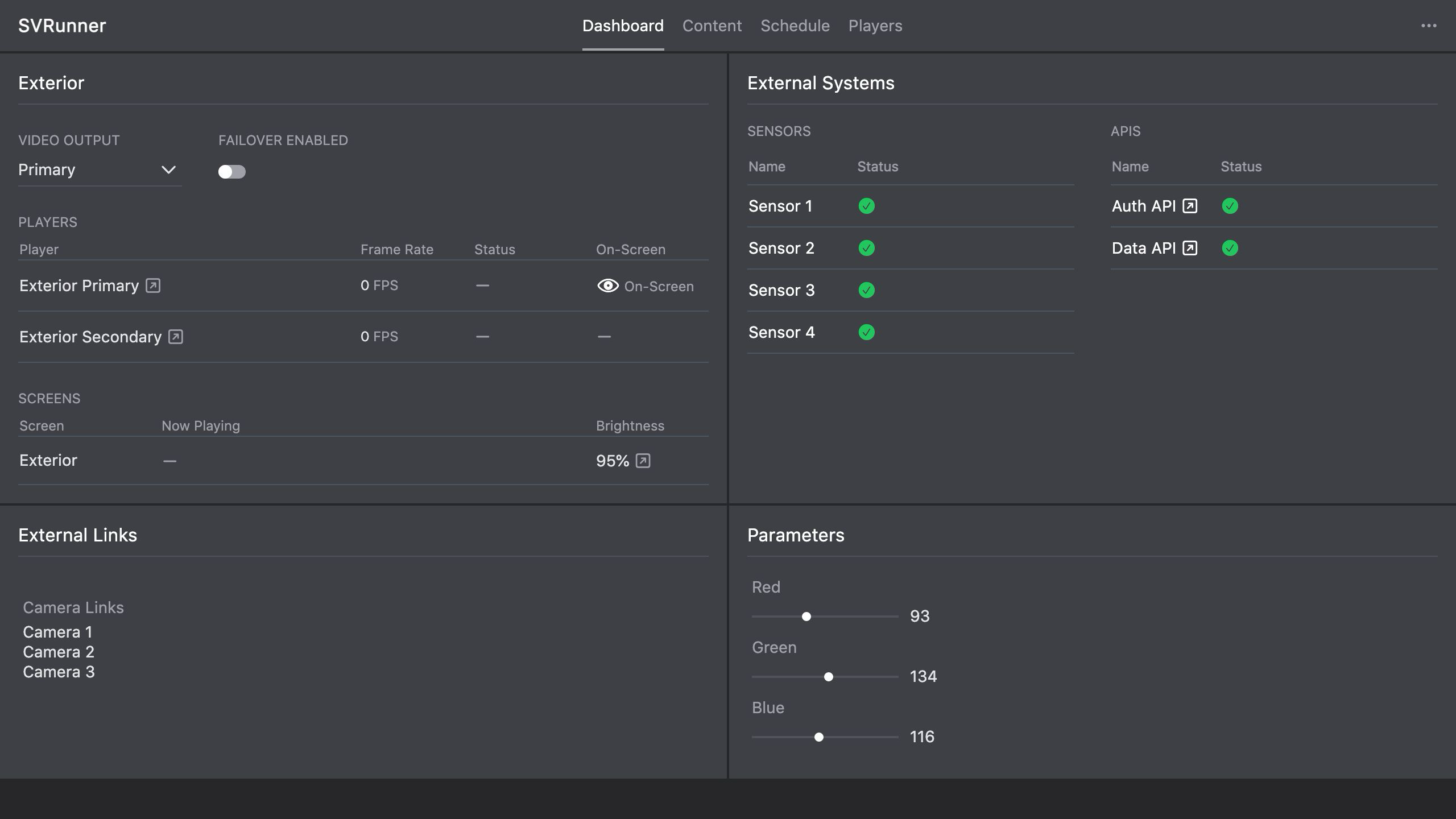 Stub screenshot: target panel or related operational view showing which player is currently on-screen versus available as backup. Save final image at
 packages/docs/screenshots/app-target-panel-output-state.png.
Typical Admin Workflow
- Create or open the target or canvas configuration.
- Set the name and dimensions.
- Configure node count if used by the deployment.
- Set the failover mode.
- Define outputs and roles.
- Add or refine output commands and checks.
- Save and validate against the live display path.
Operational Guidance
Use Care With Failover Changes
Failover settings affect how the system behaves during degraded conditions.
Only change them when you understand:
- which outputs are expected to be primary or secondary
- how output checks determine active state
- how operators will verify the result after a change
Validate Against Real Hardware
A correct-looking configuration in the UI is not enough.
After changing outputs or failover logic, verify:
- which output is actually on-screen
- whether player roles match the intended output path
- whether automatic switching behaves as expected