Linux Kiosk
This page documents the Linux kiosk setup used for dedicated player devices. The goal is a machine that boots directly into the playback application, supports remote access, and can be configured with stable network and player settings.
Intended Result
The expected kiosk result is:
- the machine boots directly into the Electron player app
- SSH access is available
- VNC access is available
- the device behaves like a dedicated player rather than a general desktop workstation
Required Packages
The existing kiosk notes install these packages:
sudo apt update && sudo apt install -y xinit xorg unclutter x11vnc curl openssh-server openbox python3
These provide:
- X startup
- the windowing environment
- cursor hiding
- remote VNC access
- SSH access
- the runtime shell and Python support used by the configuration script
Kiosk Session Startup
The kiosk flow is driven by ~/.xinitrc.
The documented kiosk startup behavior includes:
- logging to
~/kiosk.log - disabling screen blanking and DPMS
- hiding the cursor with
unclutter - launching
x11vnc - launching
openbox - waiting for network connectivity
- starting the Electron player in kiosk mode
The current template uses a CONNECTIVITY_HOST value and waits until that host responds before launching the player app.
Manual Setup Steps
- Install the required packages.
- Create
~/.xinitrcwith the kiosk startup commands. - Make
~/.xinitrcexecutable. - Enable and start SSH.
- Test the kiosk session manually with
startx.
Autologin And Automatic Startup
The documented flow configures:
- autologin on
tty1 startxlaunch from~/.bash_profile- optional fallback in
~/.profile - disabling the desktop login manager such as
gdm
This ensures the box boots directly into the kiosk session instead of the normal desktop environment.
Configuration Script
The provided configure-kiosk.sh script makes the setup more repeatable.
It currently handles:
- VNC password creation
- updating
CONNECTIVITY_HOSTin~/.xinitrc - writing player settings into
~/.config/svr-electron-player/settings.json - setting:
serverAddressserverPortplayerId
- configuring a static IP address
- using NetworkManager if available
- falling back to netplan for supported wired interfaces
Inputs The Script Requires
The documented script prompts for:
- VNC password
- CCS or server IP address
- server port
- player ID
- player static IP address
- netmask
- gateway IP address
- DNS servers
Have those values prepared before running the script.
Validation Checklist
After setup, verify:
- the machine boots into the kiosk app automatically
- SSH access works
- VNC access works
- the player can reach the SVRunner server
DISPLAY=:0 xrandrshows the expected display output~/kiosk.logdoes not show startup failures
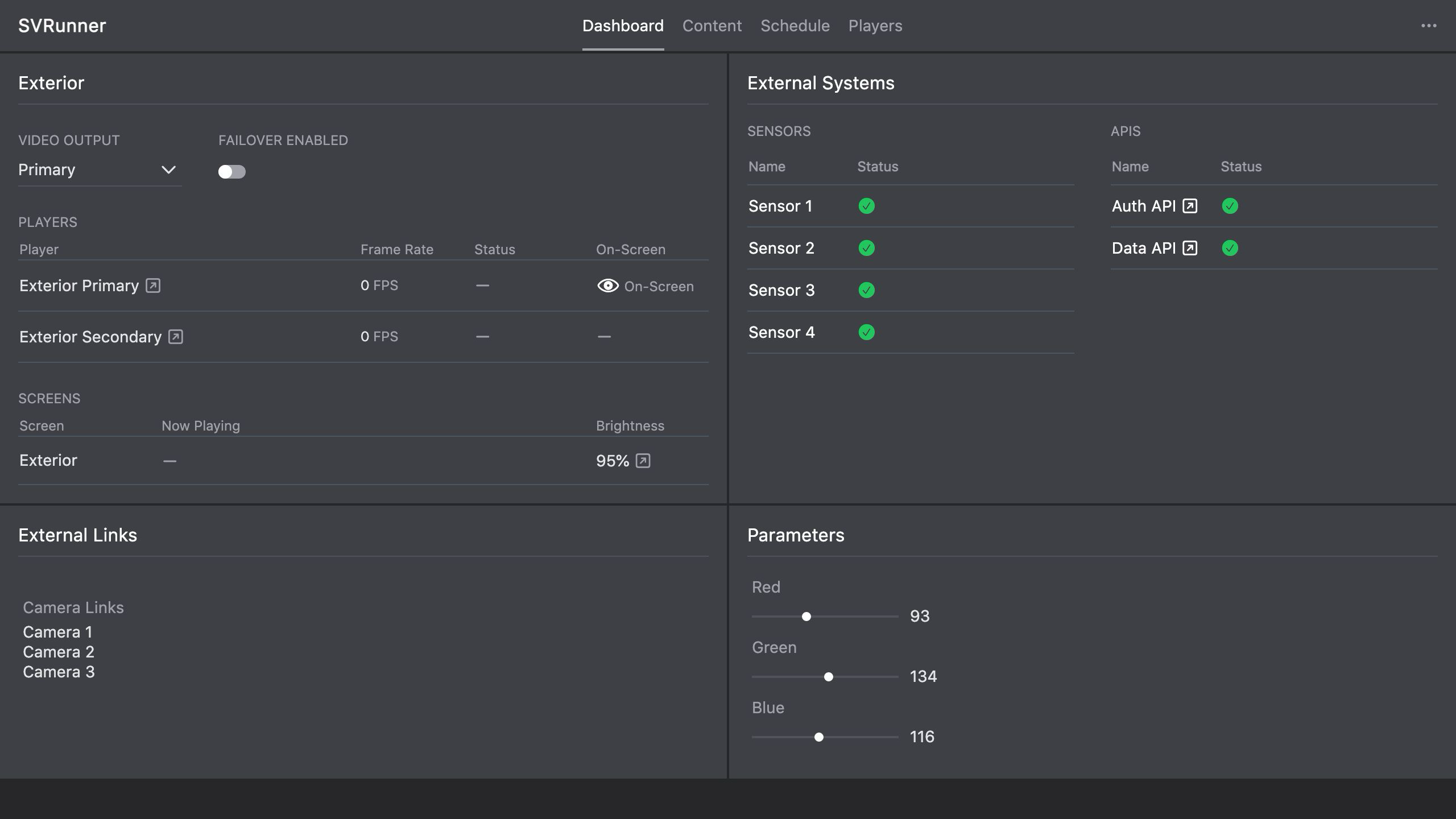 Stub screenshot: player device booted directly into the kiosk application. Save final image at
 packages/docs/screenshots/installation-linux-kiosk-device.png.
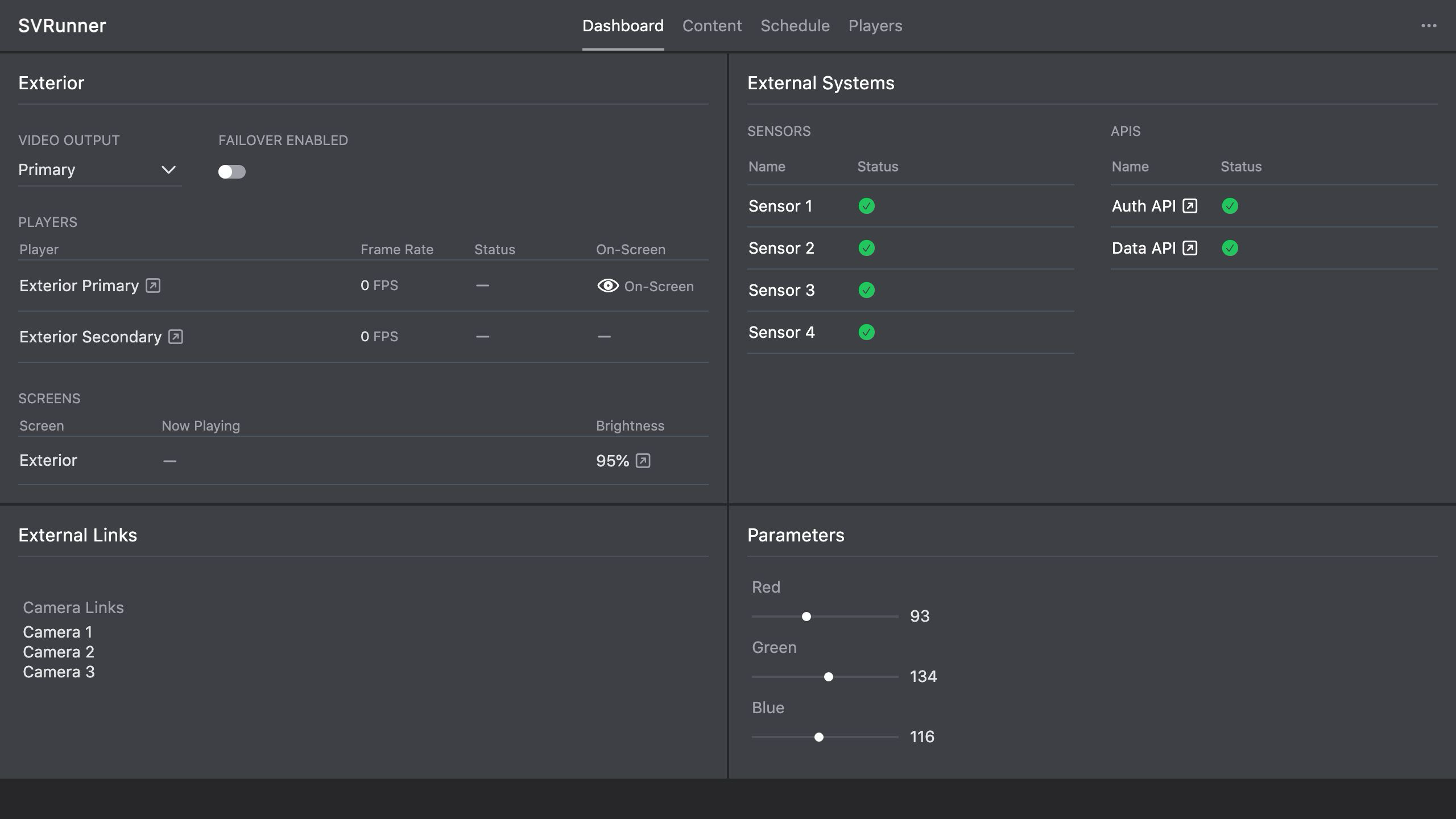 Stub screenshot: successful remote access via VNC or SSH to the kiosk device. Save final image at
 packages/docs/screenshots/installation-linux-kiosk-remote-access.png.
Operational Notes
Network Dependency
The kiosk startup waits for connectivity before launching the player. If the configured connectivity host is wrong or unreachable, the player app may never launch.
Remote Access
SSH and VNC are both part of the intended support model. Secure them appropriately for the deployment environment.
Static IP Changes
The script can update static IP settings. Treat this carefully on remote devices to avoid locking yourself out during reconfiguration.