Layouts And Display Mapping
This page documents the technical side of spatial configuration in SVRunner. It covers both screen-level mapping and layout-level composition, because both affect what operators ultimately see on the display.
Two Layers Of Visual Configuration
SVRunner uses two related but different configuration layers:
- screen mapping controls how a screen is positioned and transformed
- layouts control how scheduled content is composed into layers
Use screen mapping for display alignment. Use layouts for content composition.
Screen Mapping Fields
Current screen mapping fields include:
- resolution:
resX,resY - transform:
transX,transY - scale:
scaleX,scaleY - rotation
- crossfade as an advanced setting
These values affect how the screen output is positioned and presented.
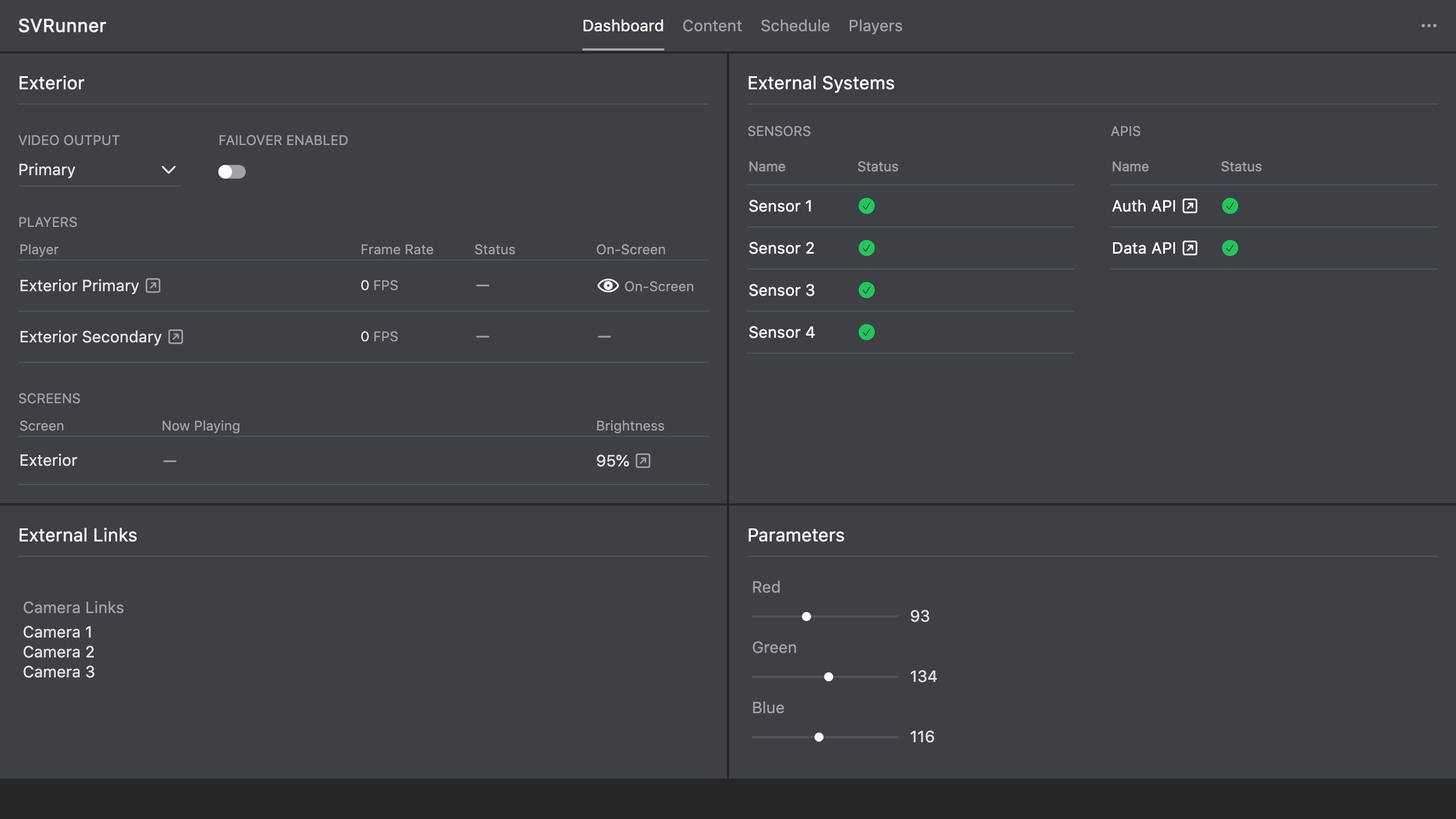 Stub screenshot: Screen mapping section with resolution, transform, scale, rotation, and crossfade visible. Save final image at
 packages/docs/screenshots/configuration-screen-mapping.png.
Layout Composition Fields
Current layout layers include:
- width and height
- transform
xandy - scale
xandy - rotation
- z-index
These values affect how content is arranged inside the layout itself.
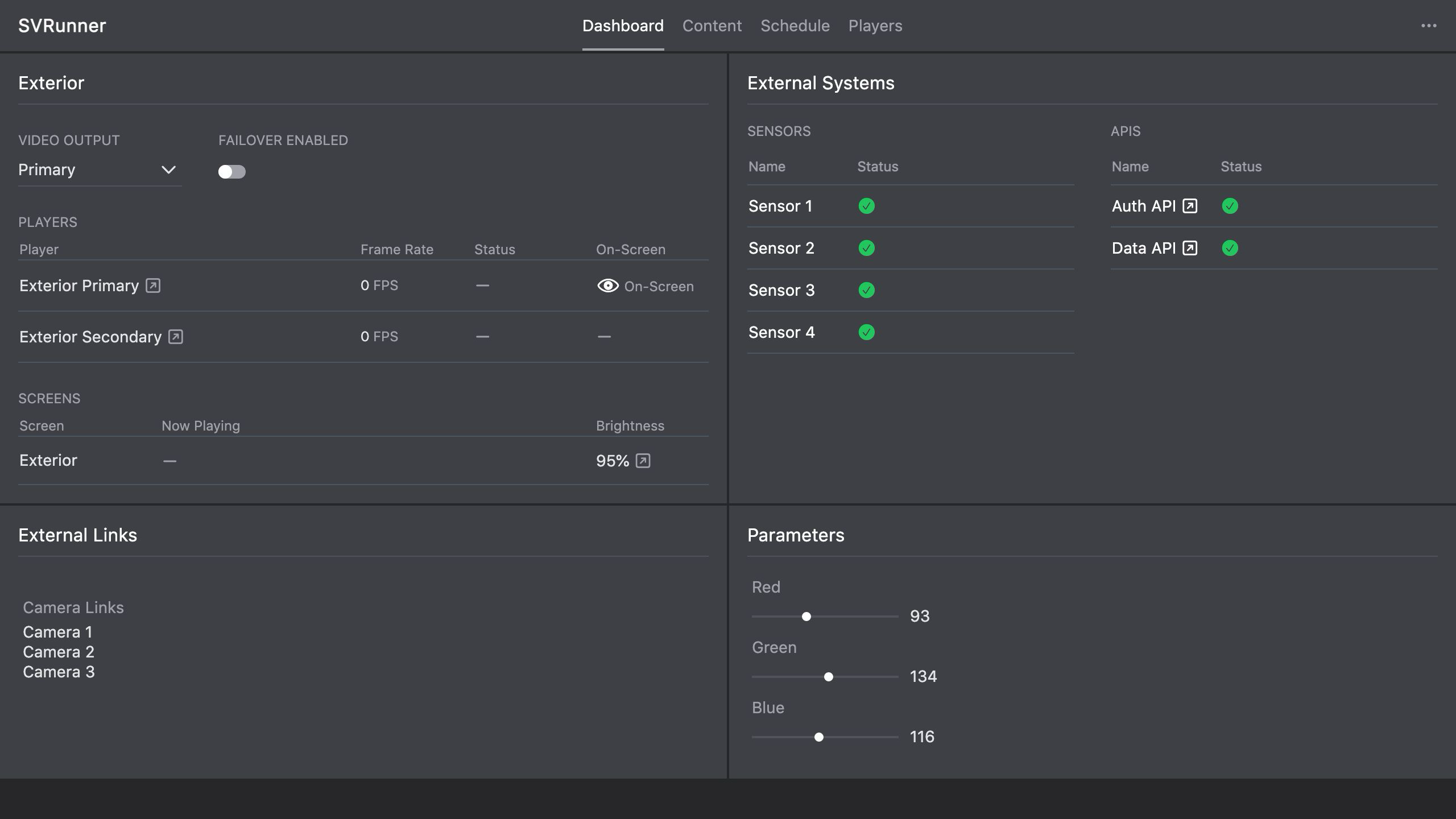 Stub screenshot: Layout layer editor with width, height, transform, scale, rotation, and z-index visible. Save final image at
 packages/docs/screenshots/configuration-layout-layer-editor.png.
When To Change Screen Mapping
Change screen mapping when:
- the physical display alignment is wrong
- resolution values need correction
- the screen output needs translation, scale, or rotation
- crossfade behavior needs adjustment
When To Change A Layout
Change a layout when:
- the composition of multiple content layers needs to change
- a scheduled presentation needs different layer ordering
- a reusable visual template needs to be adjusted
Output And Display Alignment Concerns
Even correct-looking UI values can still produce the wrong live result if:
- the screen is attached to the wrong target
- the wrong output path is active
- the physical display does not match the configured resolution assumptions
- failover has moved playback to a different path than expected
Validation Steps After Changes
After changing mapping or layout configuration:
- save the change
- open preview for the affected screen
- verify the expected composition or alignment
- validate the real live display when possible
- confirm failover/output state if the result still looks wrong
Operational Guidance
- keep screen mapping changes separate from major schedule edits when possible
- document non-obvious transform or scale values for future admins
- assume shared layouts may affect multiple events and screens