Getting Started
Introduction
SVRunner (SVR) is proprietary software designed by StandardVision used to manage the video playback portion of this installation. The SVR server exposes a web app for onsite and remote management.
The SVR web app can be accessed by connecting to the computer running SVR server, opening a web browser, and navigating to http://localhost:7376.
It can also be accessed from any computer on the network by navigating to http://<IP_ADDRESS>:7376, where <IP_ADDRESS> is the ip address of the computer running SVR server.
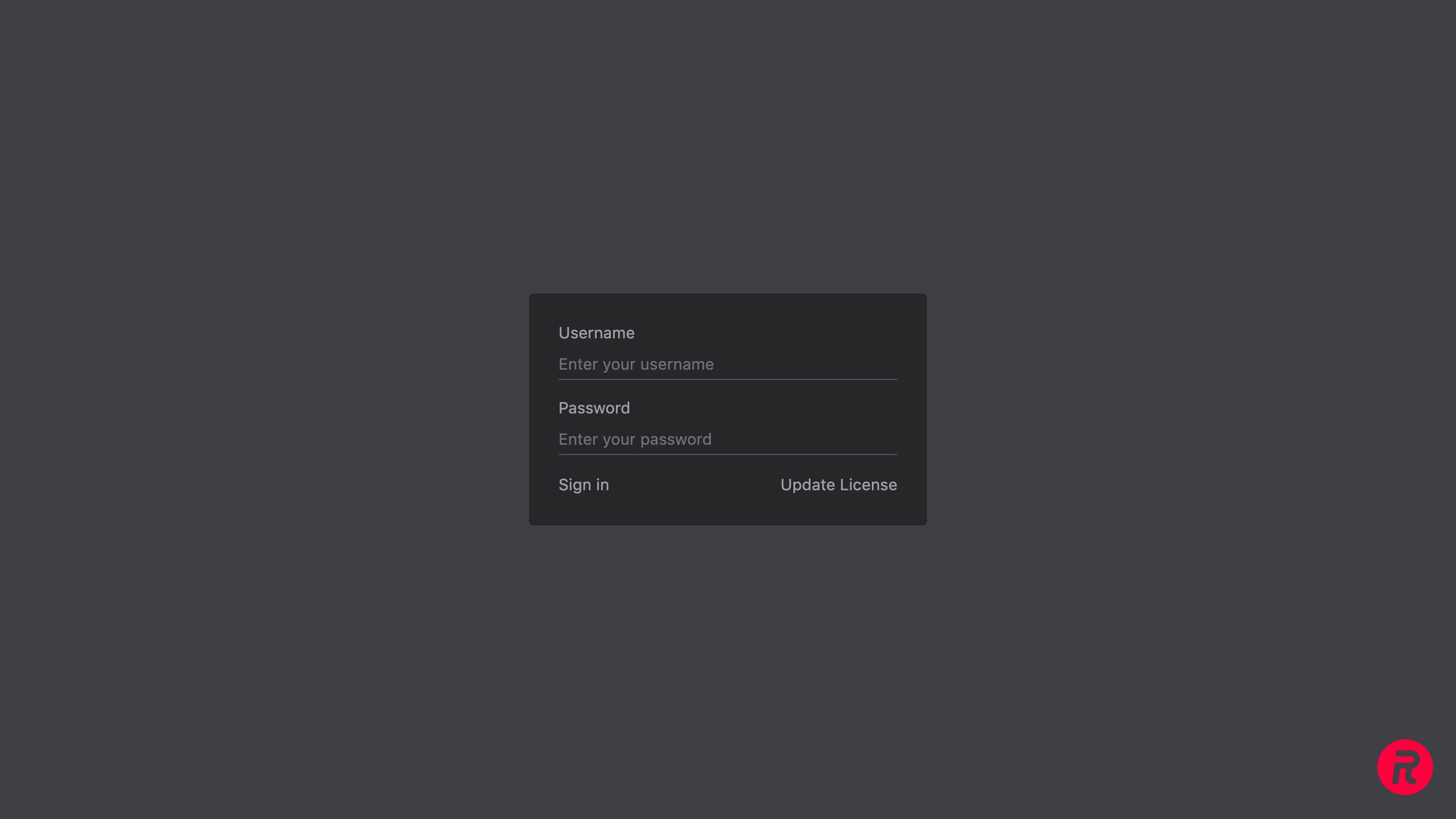 Login Screen
See system administrator for SVR login credentials.
Navigation
The primary navigation is located In the upper center portion of the window. Use the navigation buttons to go to different pages in SVRunner.
Navigation Menus
 Primary Navigation
| Navigation | Description |
|---|---|
| Dashboard | View system health and settings |
| Content > Assets | Upload and edit assets |
| Content > Asset Blocks | Create and edit asset blocks |
| Content > Tags | Create and edit tags |
| Schedule > Calendar | Manage scheduled events and actions |
| Schedule > Events | Create and edit events |
| Schedule > Actions | Create and edit actions |
| Schedule > Quick Play | Use Quick Play playback override |
| Players > Players | Setup players |
| Players > Screens | Setup screens |
| Players > Canvases | Setup canvases |
| Players > Logs | View and download playback logs |
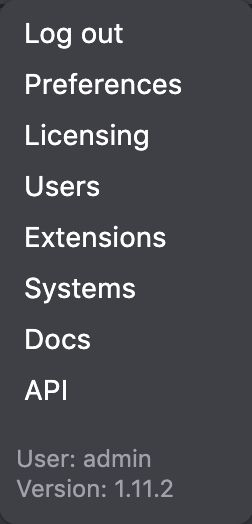
Secondary Navigation
Secondary navigation is located In the upper right portion of the window. Open the navigation menu by clicking the ... button.
| Navigation | Description |
|---|---|
| Log Out | Log out of the app |
| Preferences * | Edit project preferences |
| Licensing * | Manage software licensing |
| Users * | Create and manage users |
| Extensions * | Create and edit extensions |
| Systems * | Create and edit external systems |
| Docs | View app documentation |
| API * | Access the GraphQL API |
* = Admin Only
List Views
List views are used throughout the app to navigate searchable lists of items.
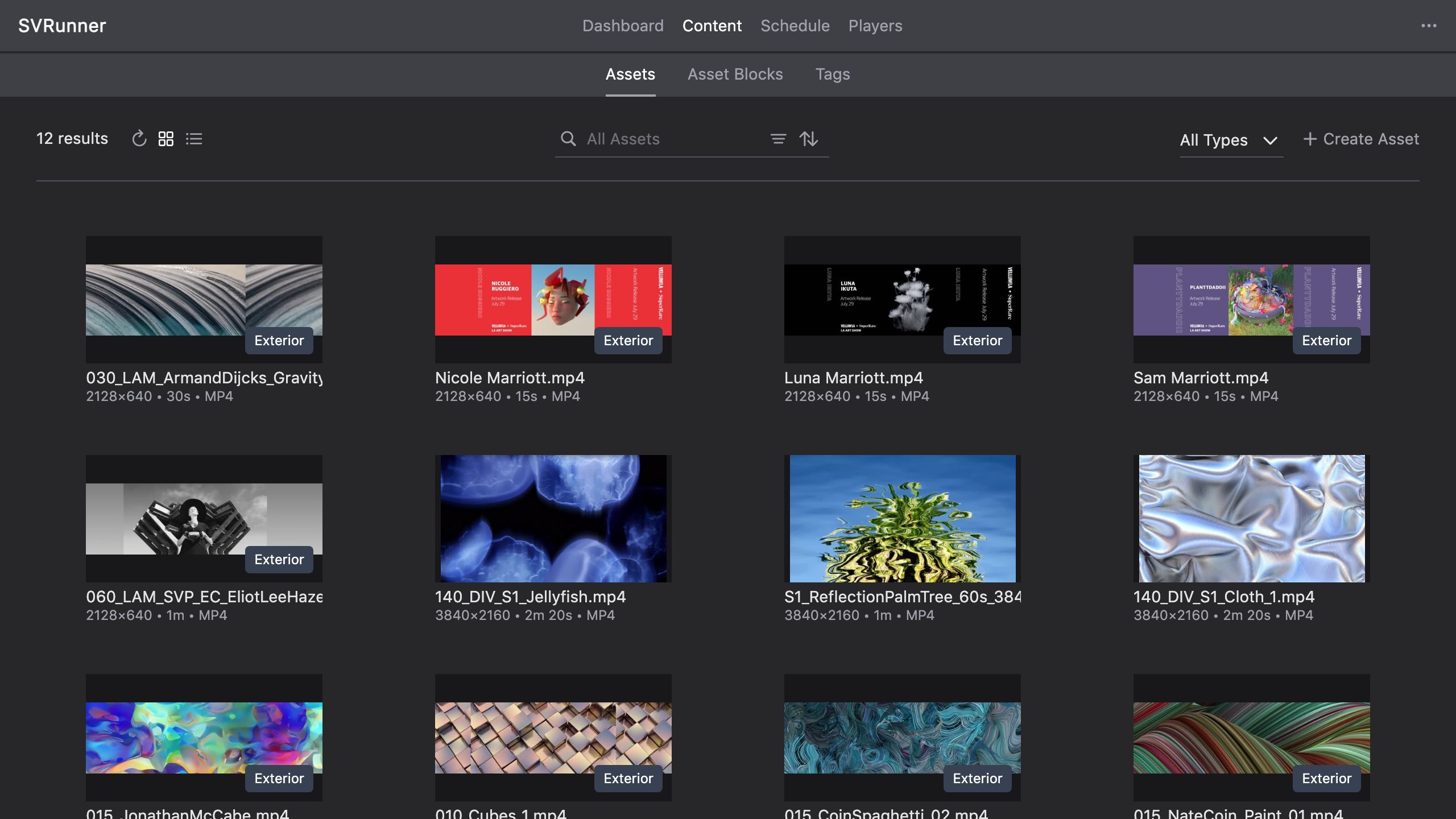 Example: Asset List in grid view

Search View Buttons
- Refresh: Manually refresh the list of items
- Grid / List: Toggle grid or list view

Search input with filter/sort
Item Sidebar

Item Sidebar (Top)
Delete: Click the trash icon to delete the item. A modal will open, prompting you to confirm deletion of the selected item.
Duplicate: Where available, click the copy icon to duplicate an item.

The top section of the sidebar is reserved for the saved status of the currently selected item.
When an item has been edited, the saved status changes, indicating that there are unsaved changes.
To save those changes permanently click Save, or click Cancel to revert the changes.
Drag and Drop
Drag and drop is used in the application for reordering lists of items.
Press and hold an item in a drag and drop list and release the item after moving it to a new position in the list.

Example: Asset Order List